Deploying infrastructure
Deploying infrastructure
In this step we will use SAM - Serverless Application Model which is an opensource framework that makes it easier to deploy serverless infrastructure. You will see and use SAM templates throughout this exercise.
-
Return to the terminal interface of Cloud9.
-
Run the commands below to get the account ID information, then set the value for the s3_deploy_bucket variable with theme-park-sam-deploys-[accountid]. Finally, create a S3 bucket named theme-park-sam-deploys-[accountid] (stored in the s3_deploy_bucket environment variable)
S3 bucket will be used to SAM upload code and deploy our application service.
accountId=$(curl -s http://169.254.169.254/latest/dynamic/instance-identity/document | jq -r .accountId)

s3_deploy_bucket="theme-park-sam-deploys-${accountId}"

echo $s3_deploy_bucket

aws s3 mb s3://$s3_deploy_bucket

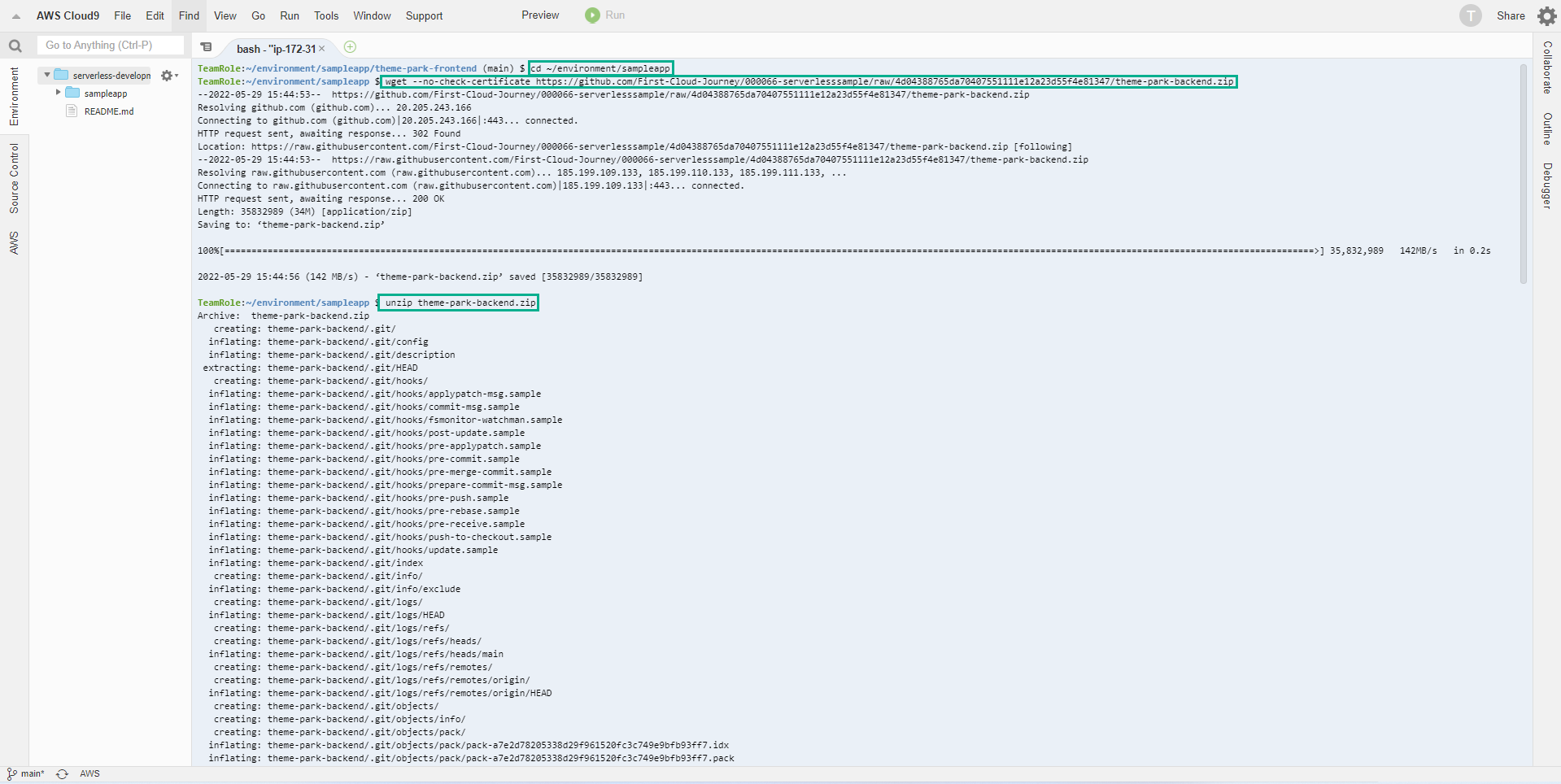
- Run the commands below to download the source used for the backend.
cd ~/environment/sampleapp
wget --no-check-certificate https://github.com/First-Cloud-Journey/000066-serverlesssample/raw/4d04388765da70407551111e12a23d55f4e81347/theme-park-backend.zip
unzip theme-park-backend.zip
- Next we will use SAM CLI to deploy the first infrastructure.
cd ~/environment/sampleapp/theme-park-backend/1-app-deploy/ride-controller/
sam package --output-template-file packaged.yaml --s3-bucket $s3_deploy_bucket
sam deploy --template-file packaged.yaml --stack-name theme-park-ride-times --capabilities CAPABILITY_IAM
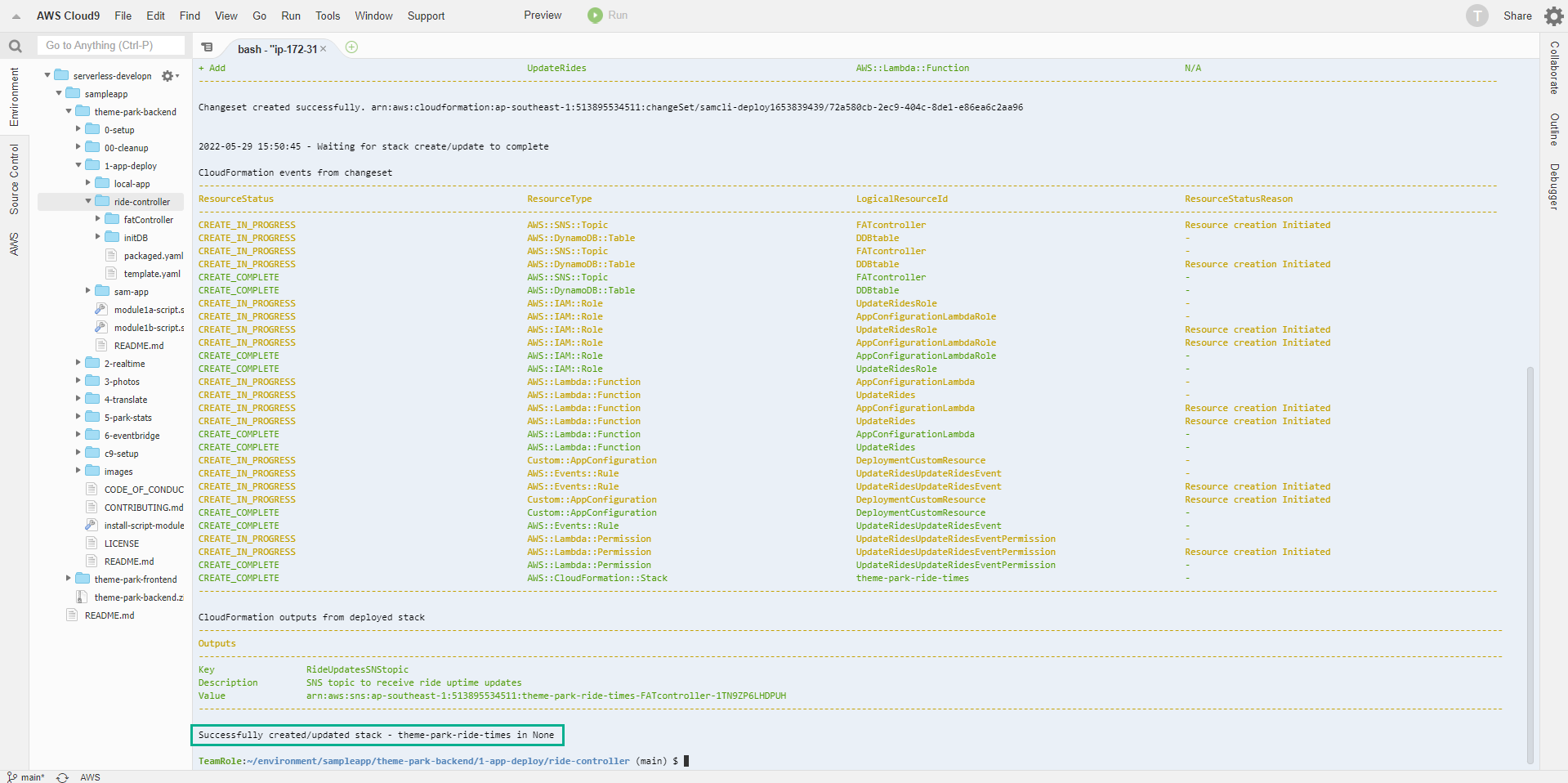
This process will take a few minutes to deploy. You can see the deployment progress in the dashboard. Wait until you see the confirmation message Created/updated successfully stack - theme-park-ride-times in the console before continuing.
- Continue to deploy the second infrastructure part.
cd ~/environment/sampleapp/theme-park-backend/1-app-deploy/sam-app/
sam build
sam package --output-template-file packaged.yaml --s3-bucket $s3_deploy_bucket
sam deploy --template-file packaged.yaml --stack-name theme-park-backend --capabilities CAPABILITY_IAM
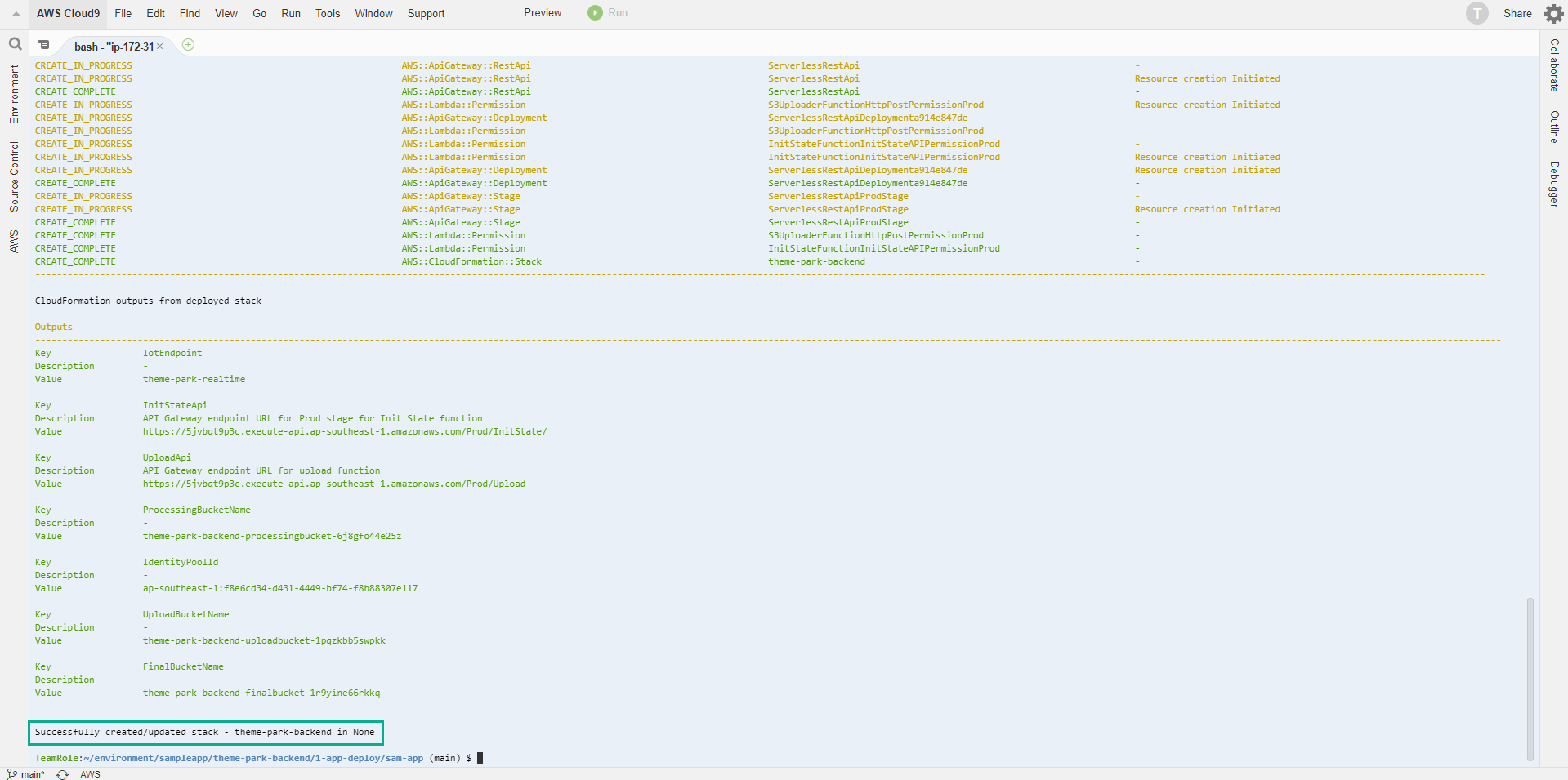
This process will take a few minutes to deploy. You can see the deployment progress in the dashboard. Wait until you see a stack - theme-park-backend confirmation message successfully created/updated in the console before continuing.
SAM has now used CloudFormation to deploy backend resources that will be used for the rest of the exercise including:
- 2 Lambda functions
- 3 S3 buckets
- A DynamoDB . table
- Cognito UserPool
- An AWS IoT thing
- Some roles and policies in IAM
- Next we’ll set some environment variables that represent the custom names of the resources deployed in your account. These commands use the AWS CLI to retrieve the CloudFormation resource name and then construct the environment variables using the Linux string manipulation commands grep and cut. This makes it easier to import deployment commands in later modules. Continue to run the commands below in the Cloud9 terminal.
AWS_REGION=$(curl -s http://169.254.169.254/latest/meta-data/placement/availability-zone | sed 's/\(.*\)[a-z]/\1/')
FINAL_BUCKET=$(aws cloudformation describe-stack-resource --stack-name theme-park-backend --logical-resource-id FinalBucket --query "StackResourceDetail.PhysicalResourceId" --output text)
PROCESSING_BUCKET=$(aws cloudformation describe-stack-resource --stack-name theme-park-backend --logical-resource-id ProcessingBucket --query "StackResourceDetail.PhysicalResourceId" --output text)
UPLOAD_BUCKET=$(aws cloudformation describe-stack-resource --stack-name theme-park-backend --logical-resource-id UploadBucket --query "StackResourceDetail.PhysicalResourceId" --output text)
DDB_TABLE=$(aws cloudformation describe-stack-resource --stack-name theme-park-backend --logical-resource-id DynamoDBTable --query "StackResourceDetail.PhysicalResourceId" --output text)
echo $FINAL_BUCKET
echo $PROCESSING_BUCKET
echo $UPLOAD_BUCKET
echo $DDB_TABLE

In the next step, we will enter the trip information into the DynamoDB table.