Creating Photo-Compositing Lambda function
Create Lambda Collage function
-
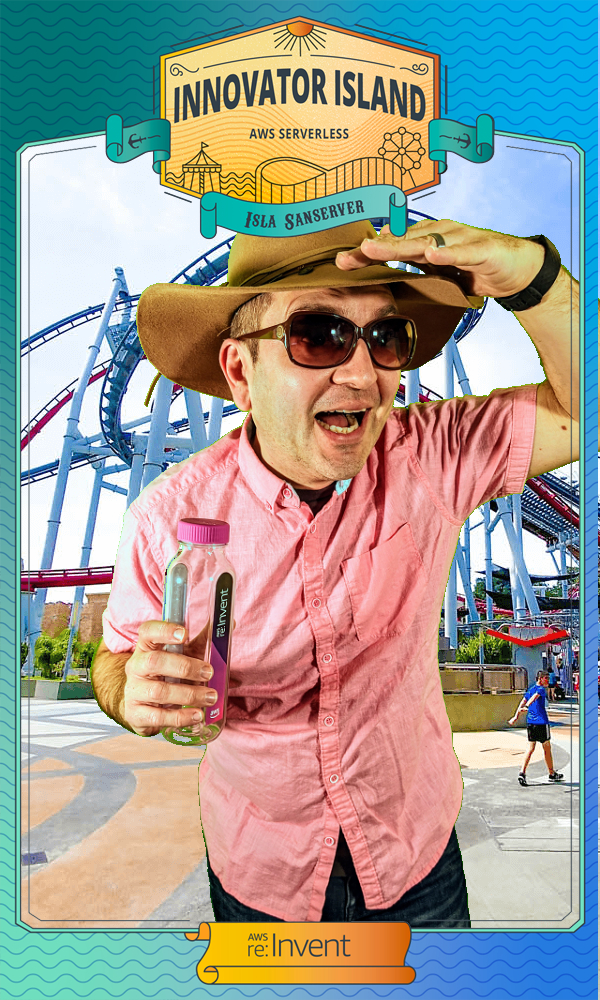
The function takes the processed image from the previous section - the person with the green screen removed - and combines different graphic elements into the final image. This final image is saved in the Final bucket.
-
In the last part, you built a Lambda function manually through the console. However, if your function contains packages or libraries, it’s easier to use automation to help you group assets together for deployment.
-
In this section, you will use AWS Serverless Application Model (SAM) to automate package and function deployment.
SAM and YAML
The AWS SAM sample file is a YAML or JSON configuration file. You use the template to declare all the AWS resources that make up your serverless.
-
Go to your browser tab while Cloud9 is running.
-
In the Cloud9 file explorer console, navigate to and open theme-park-backend\3-photos\2-compositing\template.yaml to review its contents.
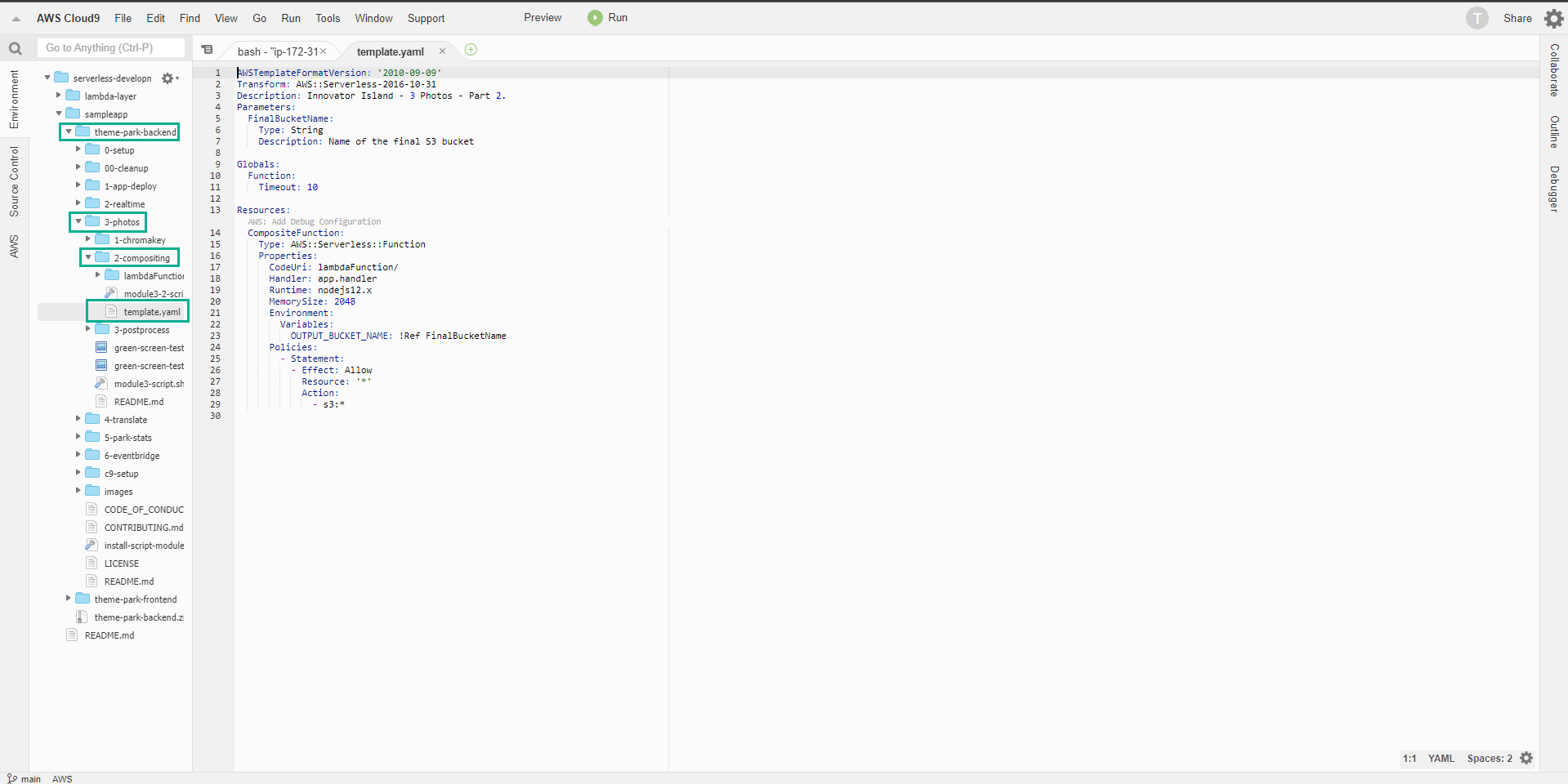
SAM will read this file and convert this YAML into infrastructure. Some important sections include:
- Parameters: the function needs to know the name of the final bucket, so you can provide this as a parameter to the template.
- Globals: any settings here will apply across the entire template.
- Resources : define AWS resources to create.
In the Resources section:
The template defines a single Lambda function called CompositeFunction.
- It specifies the runtime, the memory size, and where the code can be placed (in the lambda function directory).
- It defines an environment variable, using the FinalBucketName parameter as input. It provides an IAM policy to allow function access to S3.
Create Lambda function using SAM
- Change directory:
cd ~/environment/sampleapp/theme-park-backend/3-photos/2-compositing
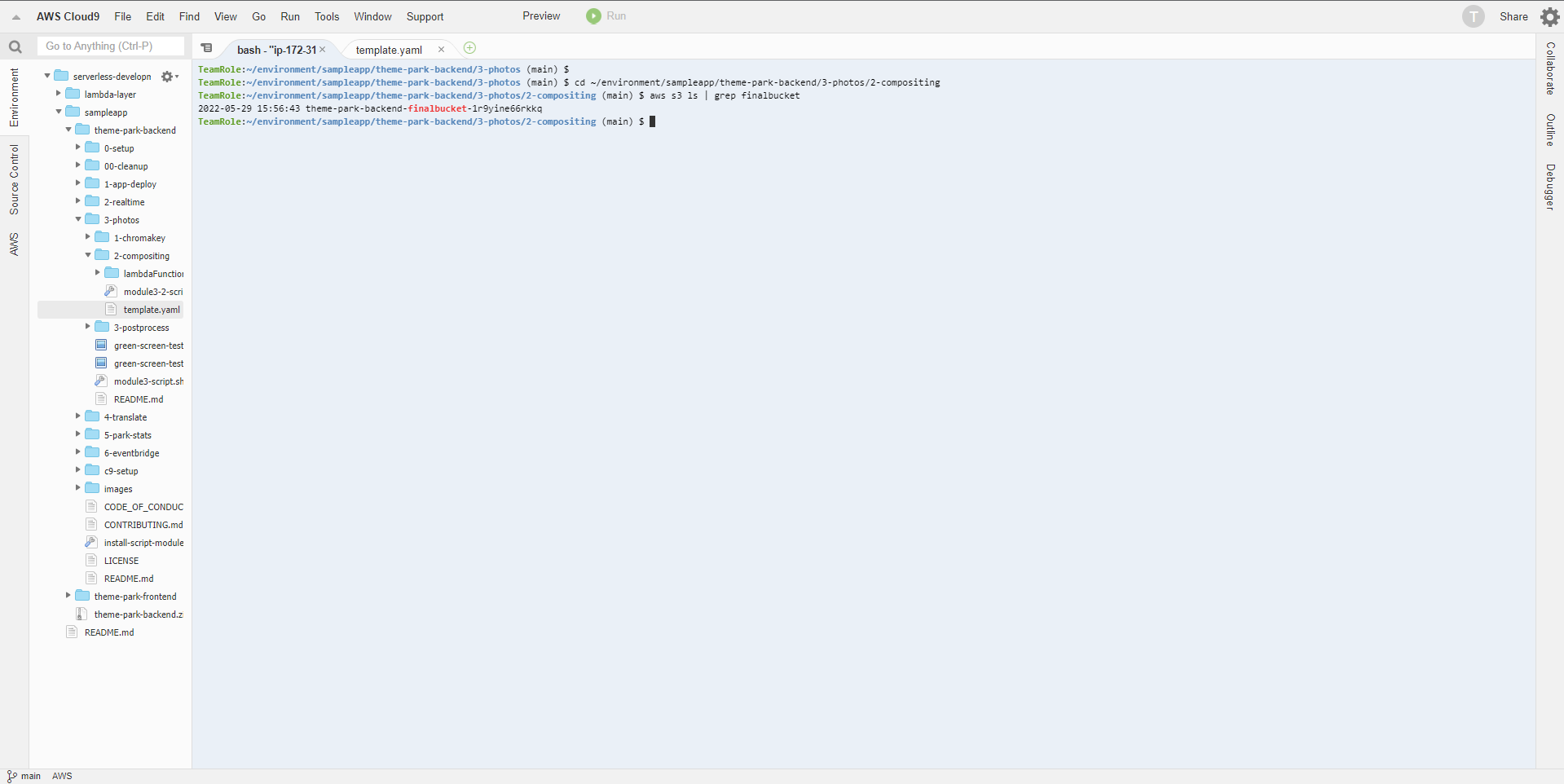
- You can see the name of the final S3 bucket using the following command which has been stored as an environment variable $FINAL_BUCKET. SAM will be configured to use this s3 bucket name to set the environment variable in the Lambda function.
aws s3 ls | grep finalbucket
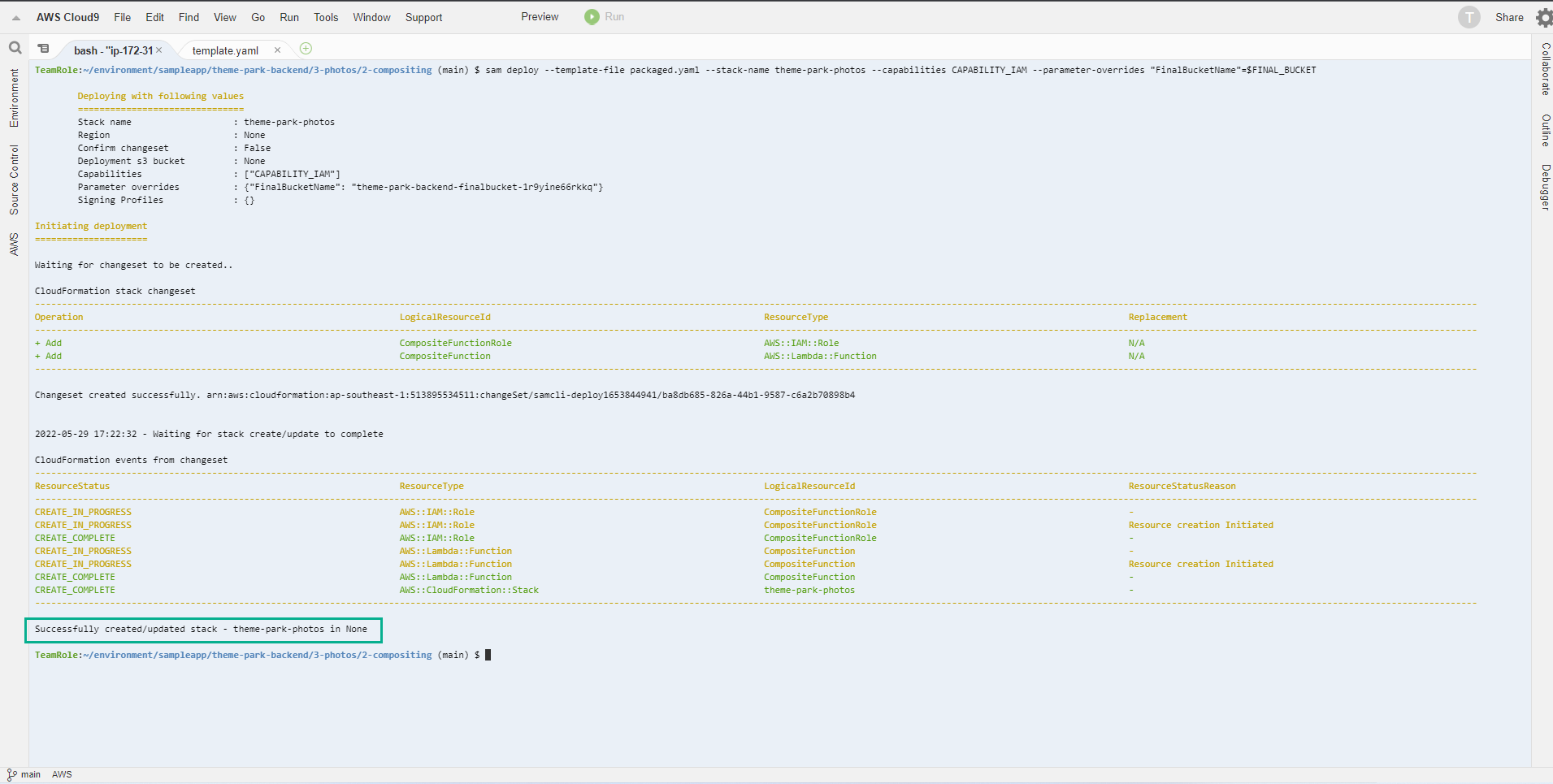
- In the terminal, executing the following SAM CLI commands will create the SAM application, package the code with the same SAM S3 deployment pool that was previously used, and then deploy the application specifying the Final bucket S3 name for Lambda function to use:
Sam build

sam package --output-template-file packaged.yaml --s3-bucket $s3_deploy_bucket

sam deploy --template-file packaged.yaml --stack-name theme-park-photos --capabilities CAPABILITY_IAM --parameter-overrides "FinalBucketName"=$FINAL_BUCKET
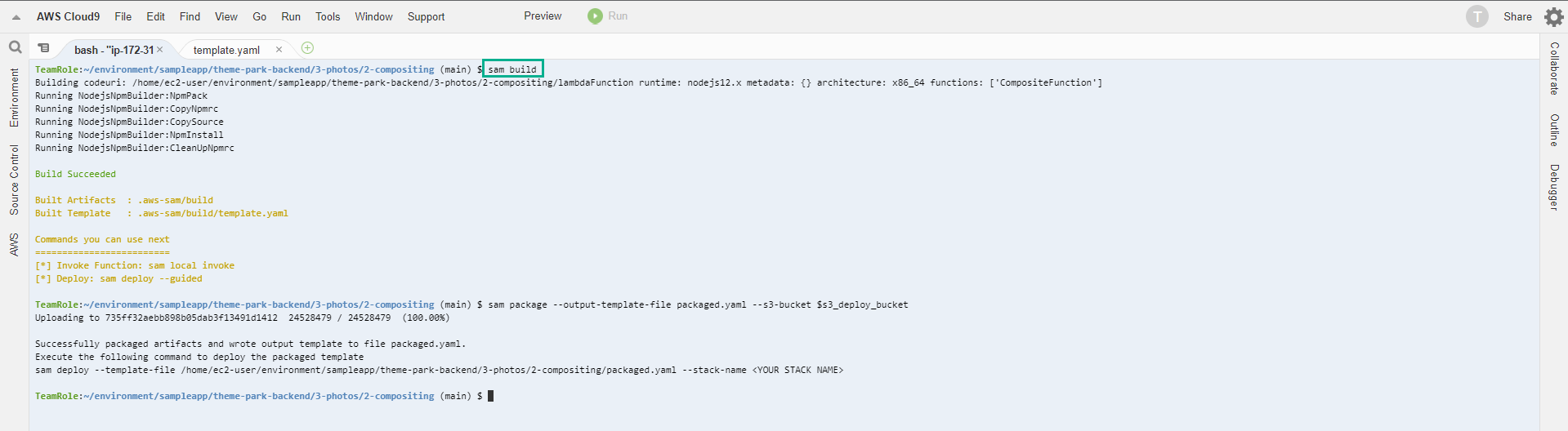
- This will take a few minutes to deploy - wait for a confirmation message in the console before continuing.
Add S3 trigger
Now that you have created the Lambda function, you need to configure what it is called. This aggregate function needs to execute when a new object is passed into the processor. In this section, you will create this trigger.
- Go to the Lambda console - from the AWS Management Console, select Service and then select Lambda. Make sure your region is correct.
- Select the function named theme-park-photos-CompositeFunction-XXXXXXXXX
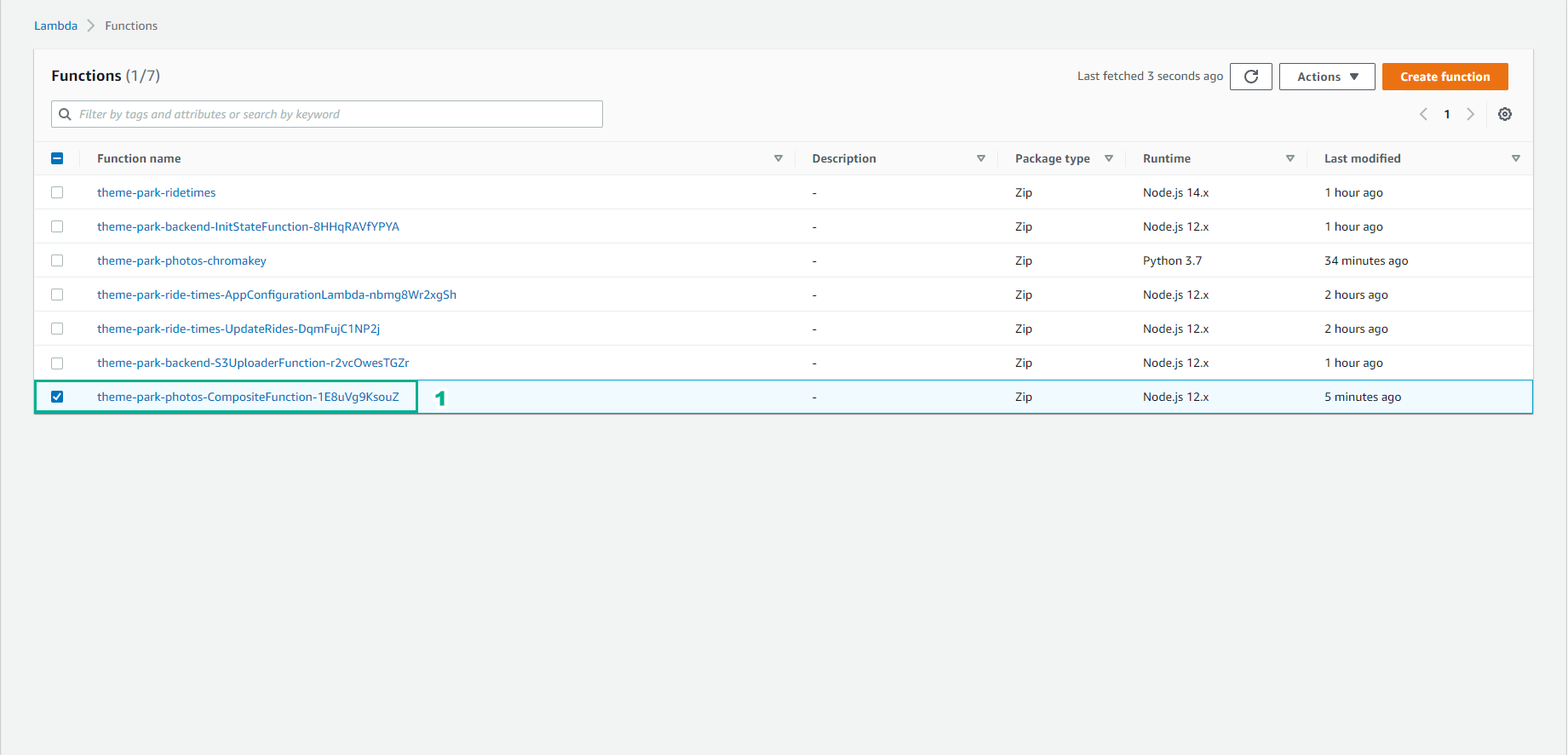
- In the Lambda function interface
- Select + Add Trigger
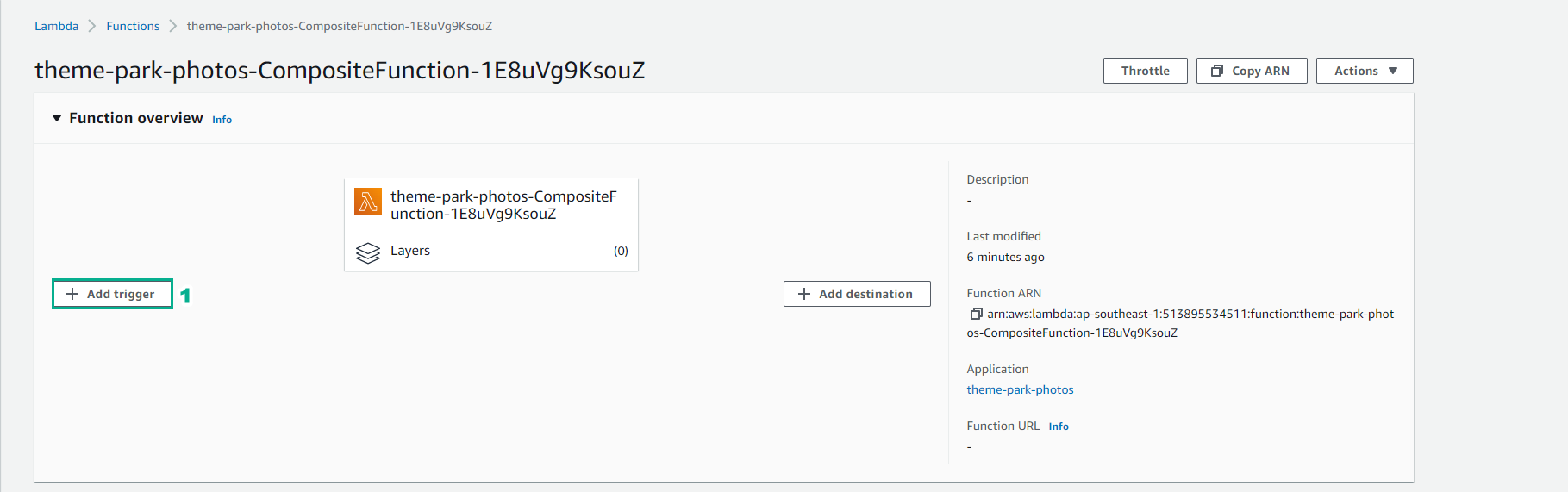
- In Trigger configuration
- Select S3
- Bucket, select theme-park-backend-processingbucket-xxx
- For Event Type, select All object create events
- Check Recursive invocation acknowledgment
- Select Add
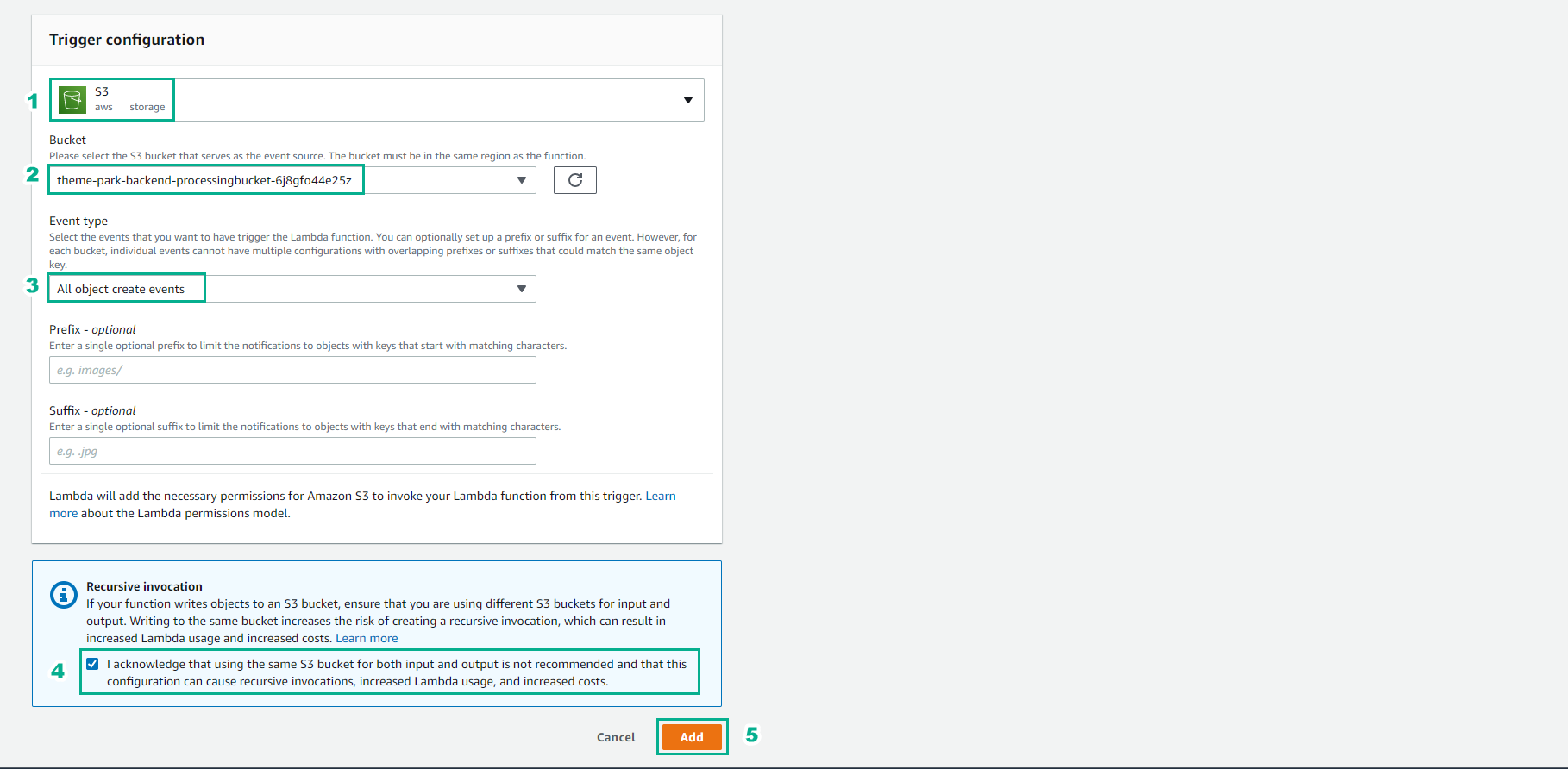
- Complete Add trigger S3
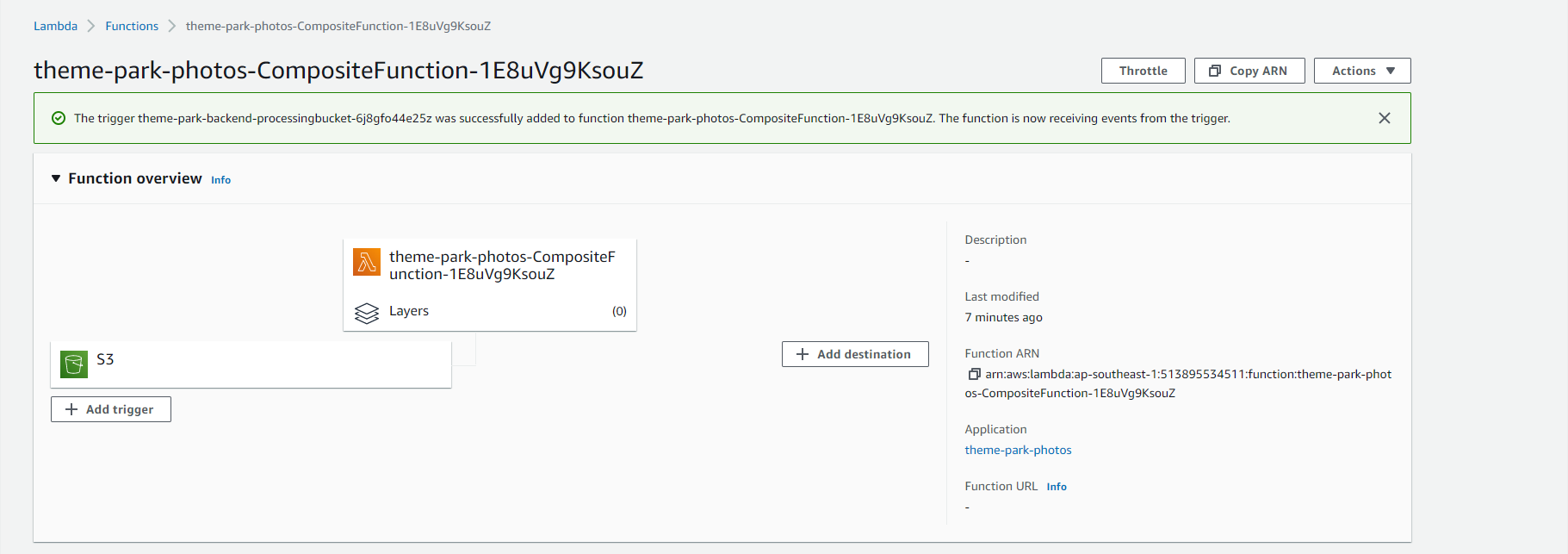
Test function
Now you will test the function using a test image containing a photo of a person on a green background. You would copy this image into the upload bucket and see the result in the final bucket.
- Go back to your browser tab while Cloud9 is running.
- In the terminal , enter the following command to change the directory:
cd ~/environment/sampleapp/theme-park-backend/3-photos/
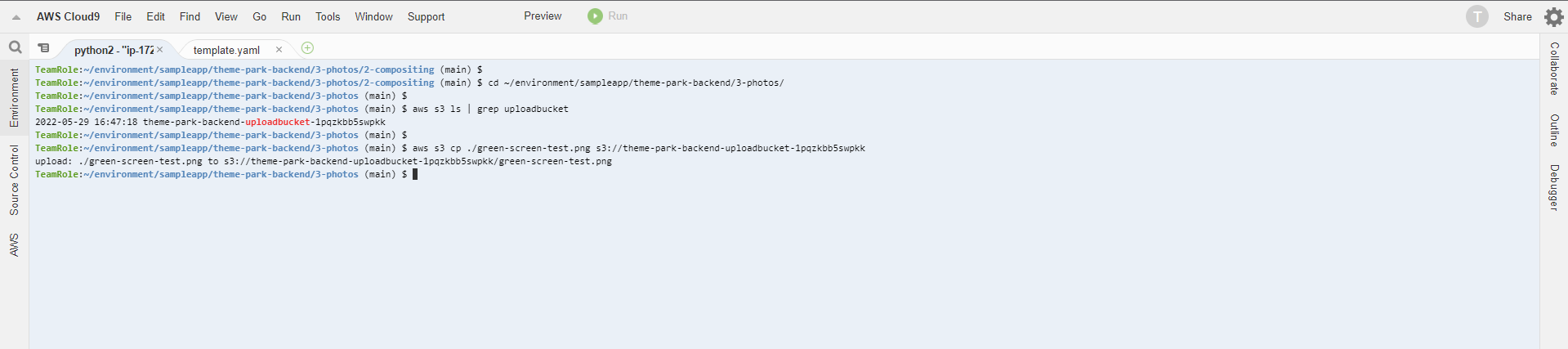
- You can see the name of your S3 bucket upload with the following command:
aws s3 ls | grep uploadbucket
- Copy the local test image to your upload bucket. The command will use the pre-created environment variable $UPLOAD_BUCKET which is set to this bucket name:
aws s3 cp ./green-screen-test.png s3://$UPLOAD_BUCKET
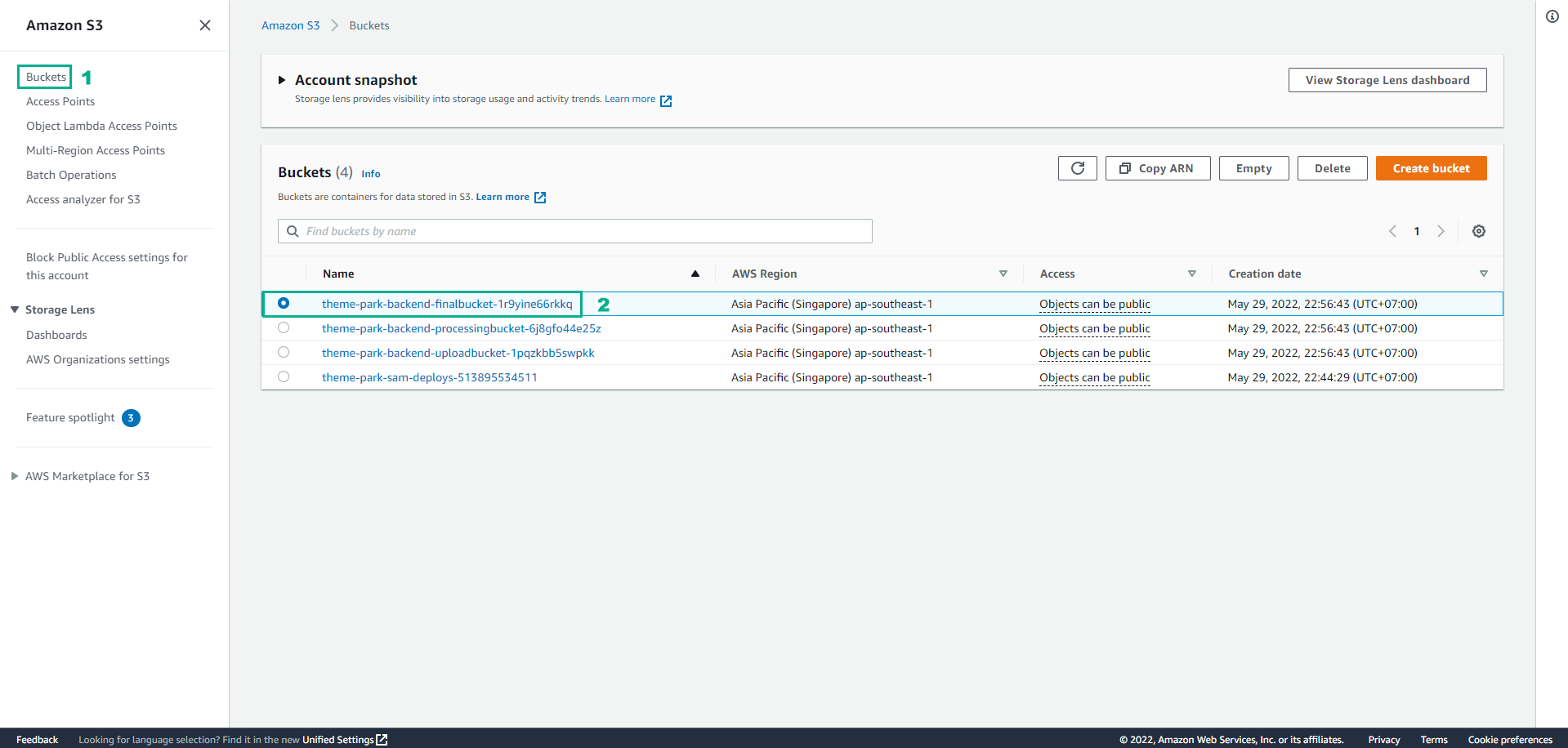
- In another tab, open the S3 console.
- Select theme-park-backend-finalbucket.
-
Test green-screen-test.jpg,
- Then select Download
- Save the file locally and open it in the image viewer.
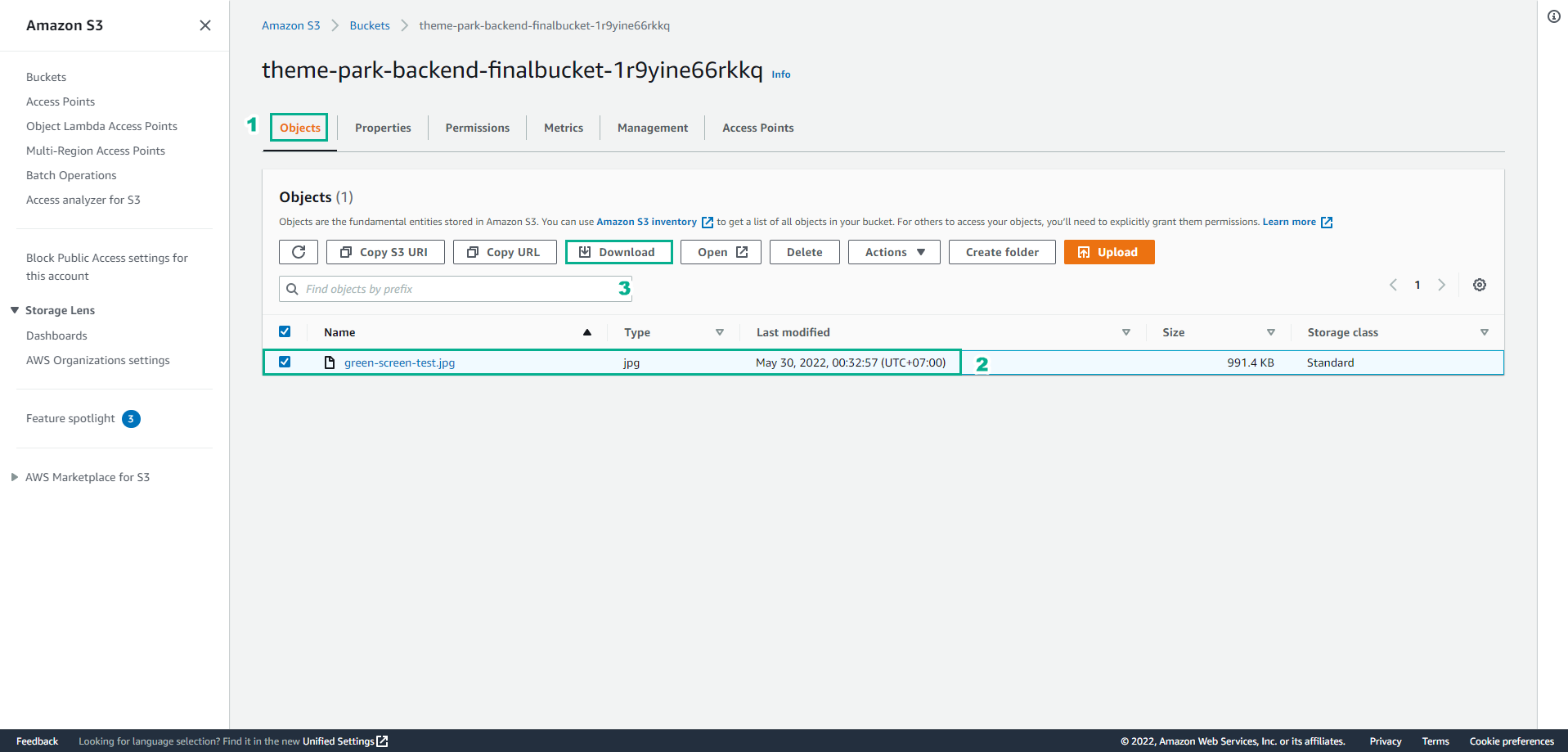
- You should see a photo of a person whose blue background has been removed and is now paired with the theme park background and logo graphic.