Creating Chroma Key Lambda function
Generate Chroma Key Lambda function
Executing chroma key processing is also commonly known as the green screen. It takes an input image of a person on a green background, discards the green, then saves the output image.
Content
Lambda functions can be written in different runtimes and can also use libraries of prepackaged code called Lambda classes.
- This section shows how you can use different runtimes for different tasks. The chroma key handling function uses an open-source Python library called OpenCV. This function is implemented in Python 3.7 while the others are written in Node.
- The OpenCV library must be compiled with the target operating system, for Lambda is Amazon Linux 2. To simplify deployment, this has been generated as a zip file for you to create a layer. More information about the services featured in this section:
Create OpenCV Lambda Layer
-
Go back to your browser tab while Cloud9 is running.
-
In the terminal, enter the following command to download the code for the class:
mkdir ~/environment/lambda-layer
cd ~/environment/lambda-layer
wget https://innovator-island.s3-us-west-2.amazonaws.com/opencv-python-37.zip

- Upload the zip package to your S3 deployment bucket:
aws s3 cp opencv-python-37.zip s3://$s3_deploy_bucket

- Create Lambda layer:
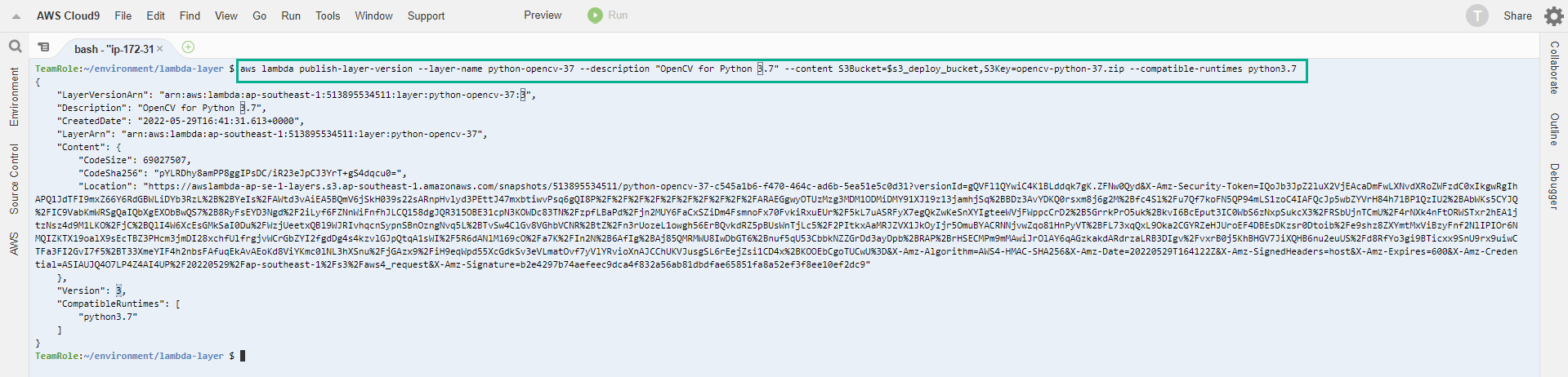
aws lambda publish-layer-version --layer-name python-opencv-37 --description "OpenCV for Python 3.7" --content S3Bucket=$s3_deploy_bucket,S3Key=opencv-python-37.zip --compatible-runtimes python3. 7
After a few seconds, the JSON response in the terminal confirms LayerArn and Version of the new layer.
Create a Chromakey Lambda function
-
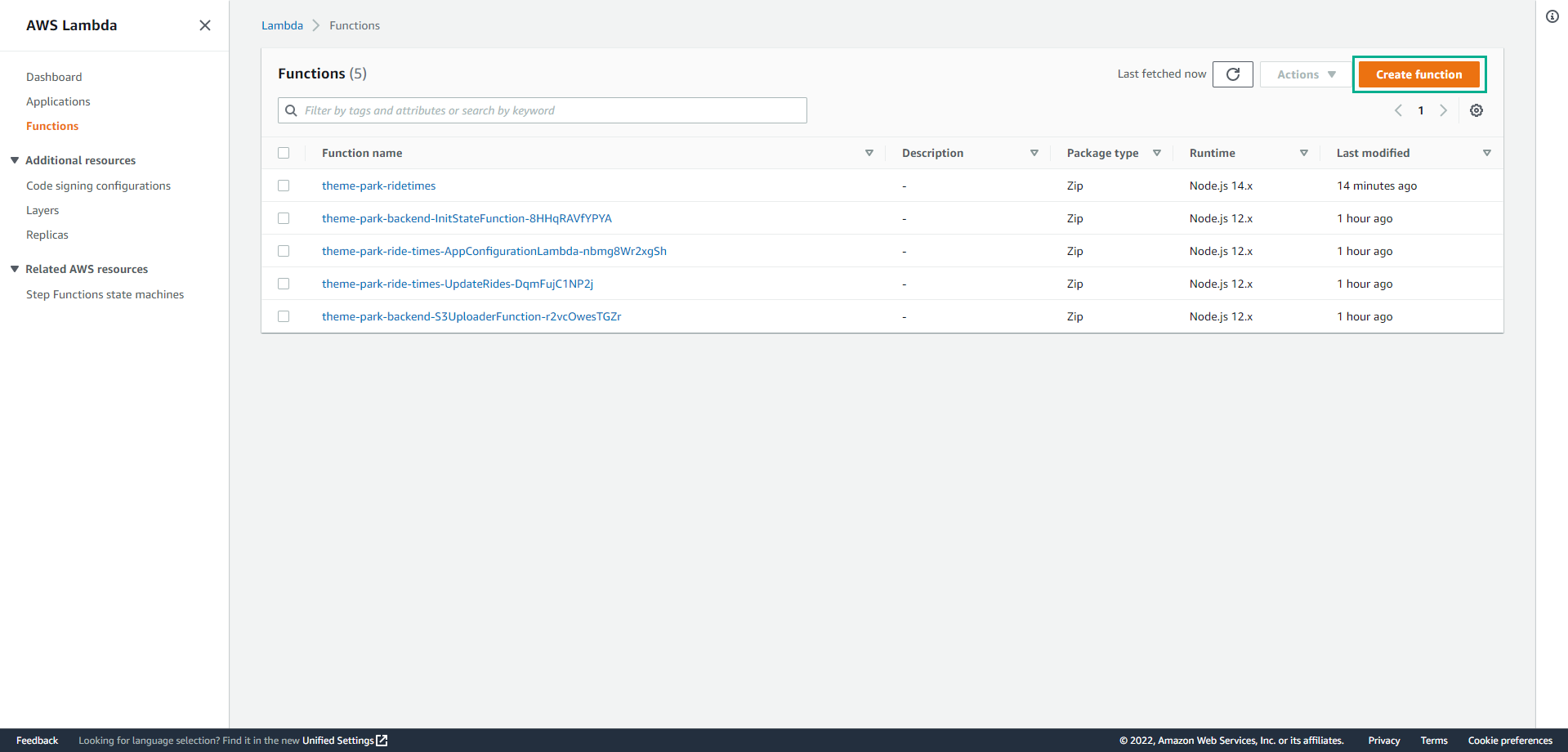
Go to the Lambda console - from the AWS Management Console, select Service and then select Lambda . Make sure your Region is correct.
- Select Create function
-
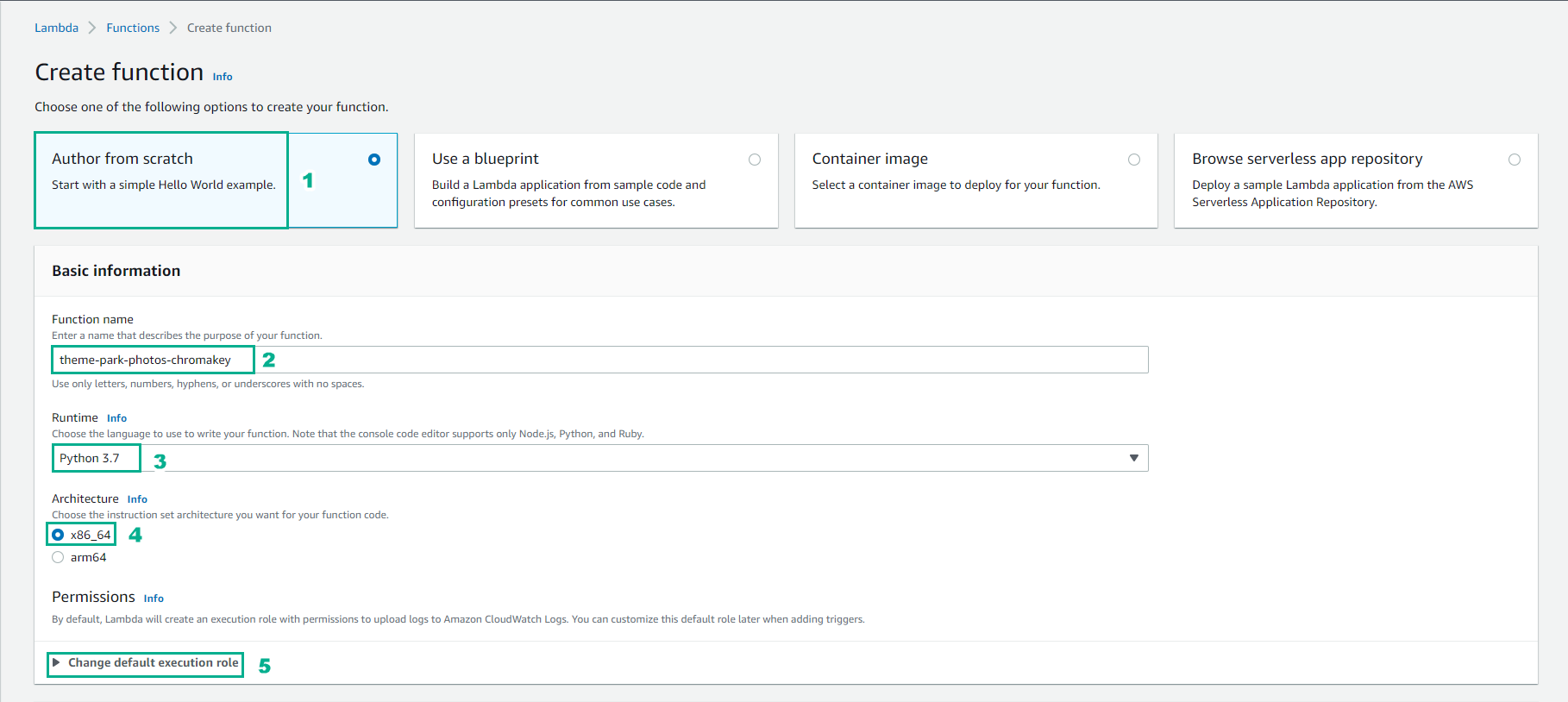
In the Create function page
- Select Author from scratch
- Enter theme-park-photos-chromakey for Function name.
- Make sure Python 3.7 is selected in Runtime.
- For Architecture , choose x86_64.
- Choose to expand Change default execution role
-
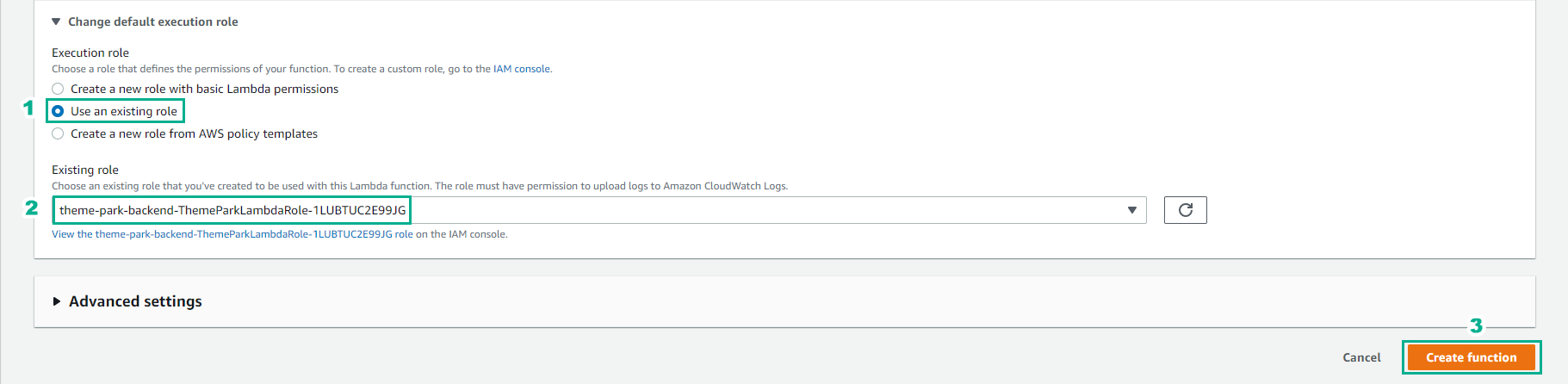
In the Change default execution role section.
- Select Use an existing role
- Select theme-park-backend-ThemeParkLambdaRole-XXX
- Select Create function
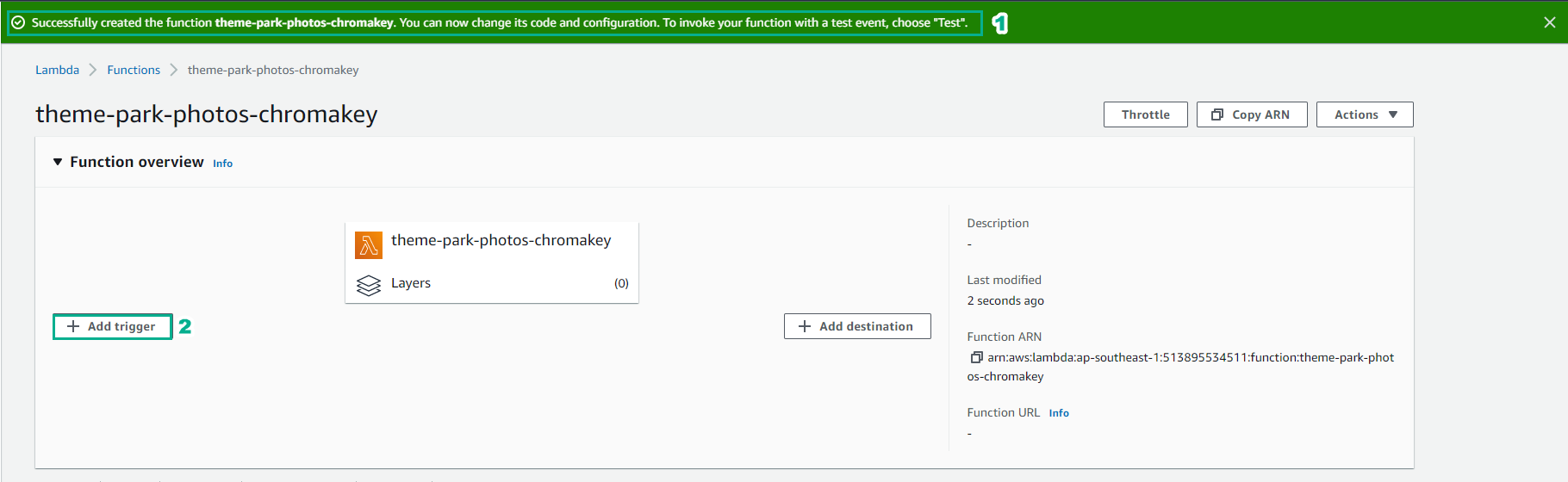
- In the overview page of Lambda function just created
- Select + Add Trigger.
-
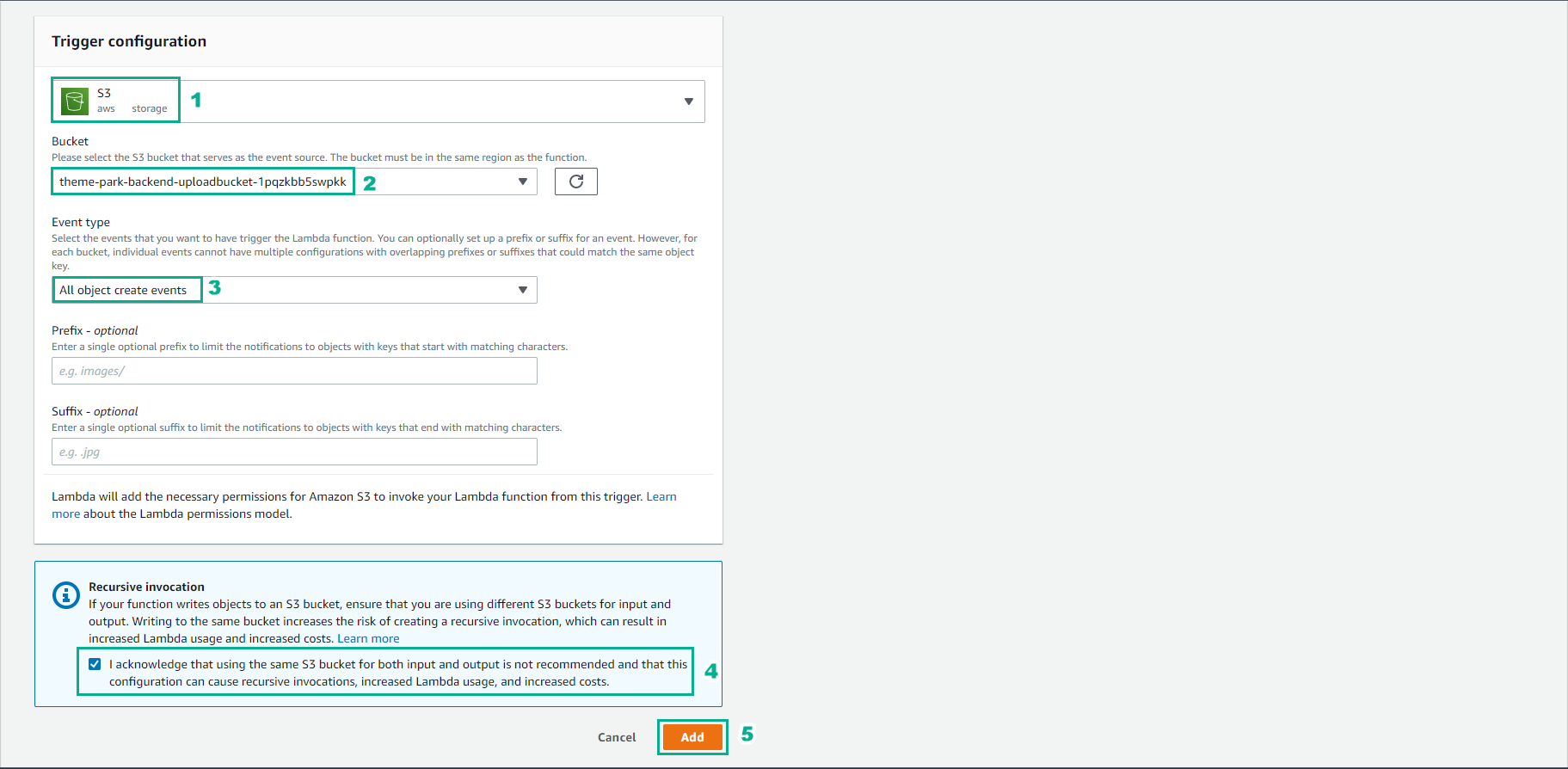
In Trigger configuration
- Select S3
- For Bucket, choose theme-park-backend-uploadbucket-xxx
- For Event Type select All object create events
- Select I acknowledge…
- Select Add
-
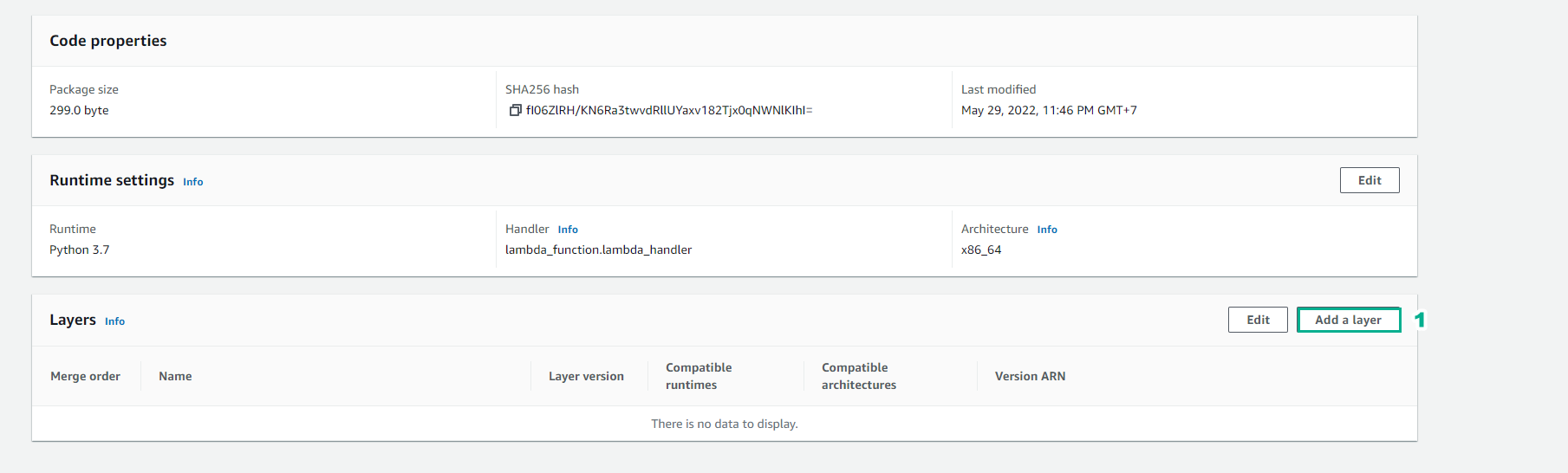
Back to the Lambda function interface,
- Select Code tab
- Scroll down and stop Layers card
- Select Add a layer
-
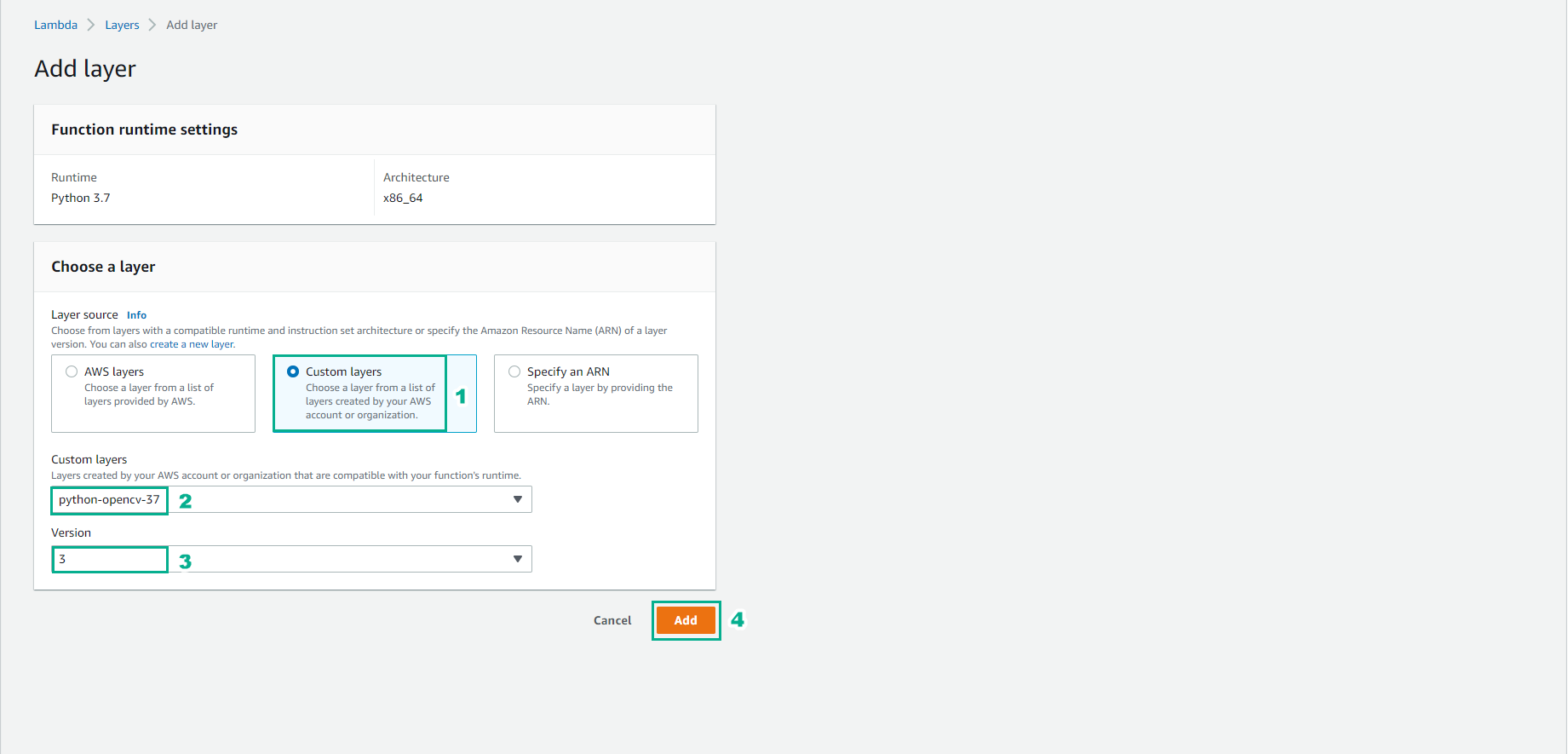
In the Add layer page
- Select Custom layers
- In Custom layers, select python-opencv-37
- For Version, select current version
- Select Add
- Back to Lambda function
- Select Code tab.
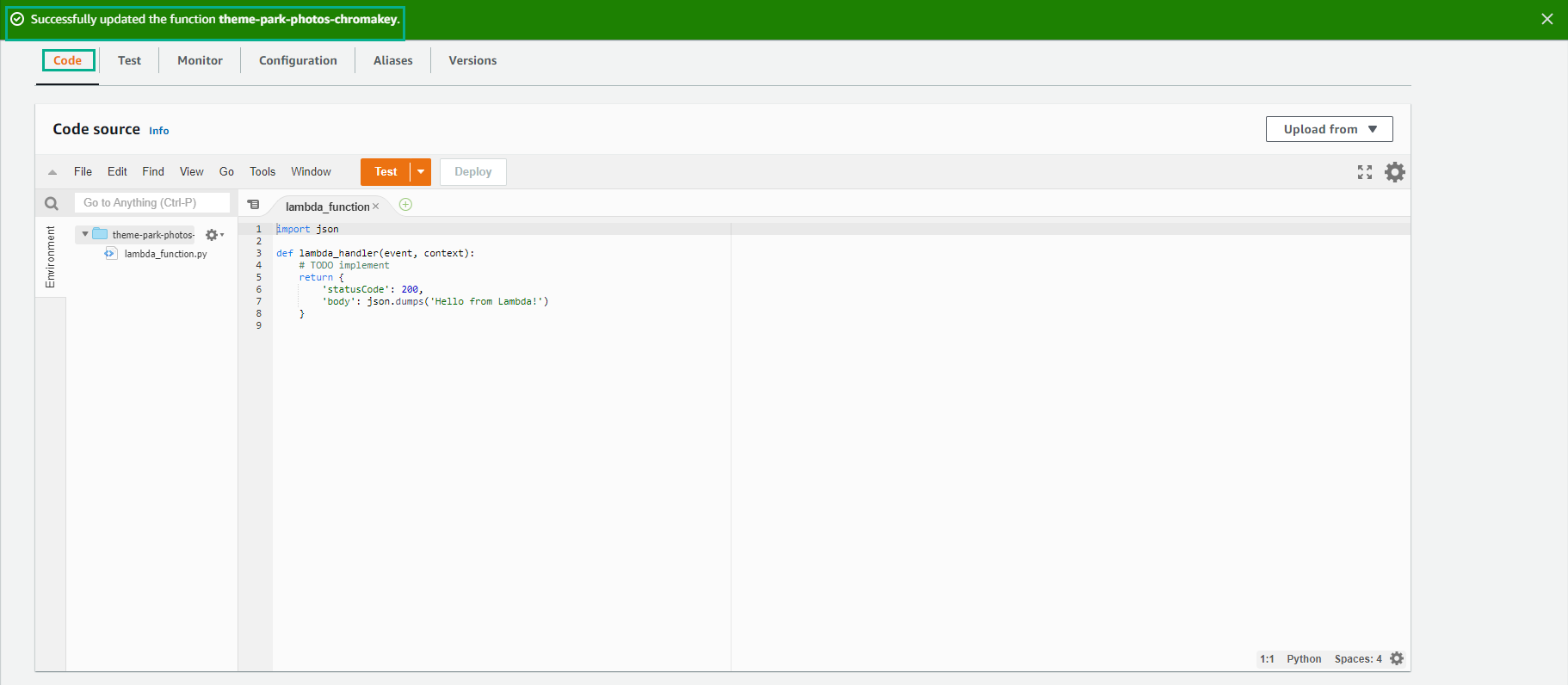
- Return to Cloud9
- Select 3-photos/1-chromakey/app.py
- Copy the code of app.py
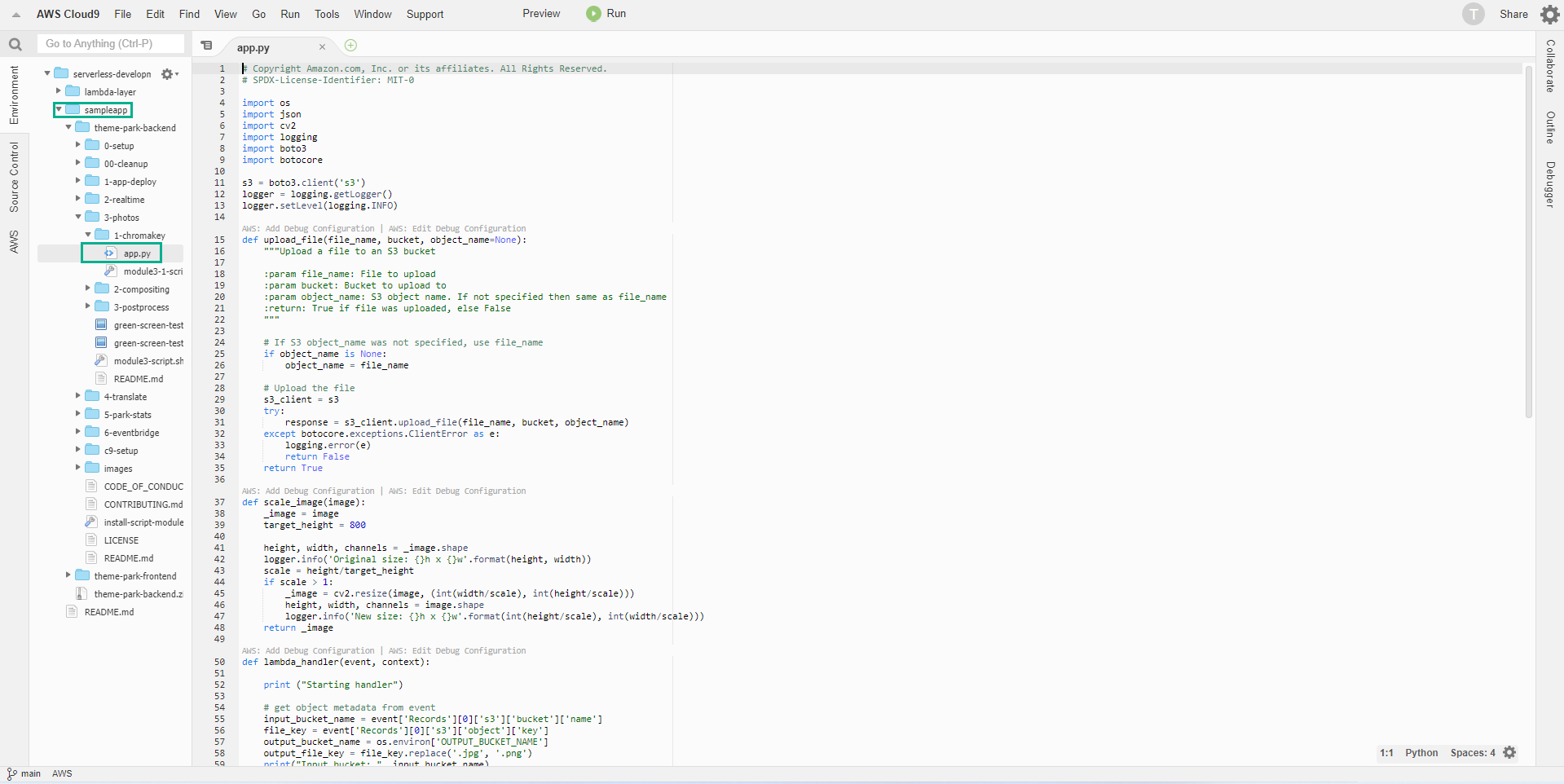
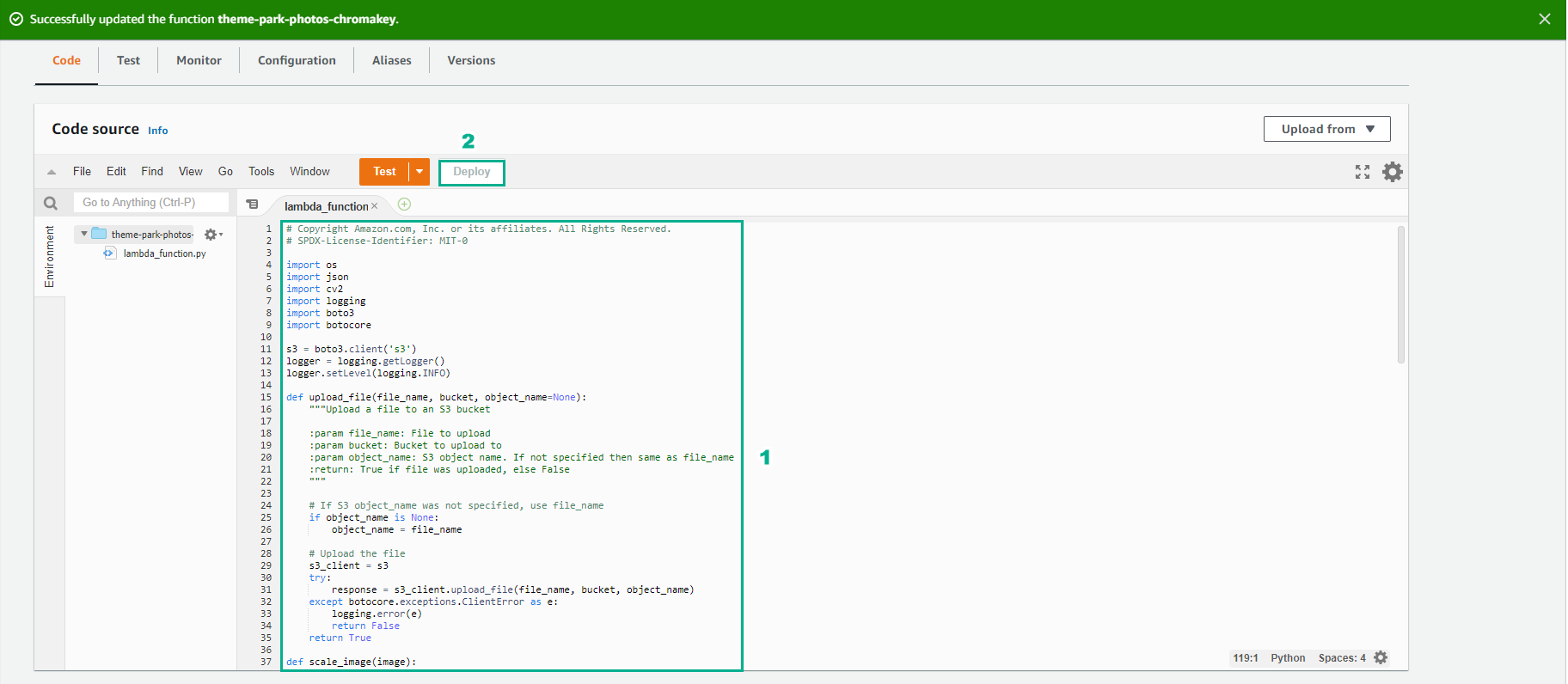
- Paste the code of app.py into lambda_function.py
- Save
- Select Deploy
Add environment variables
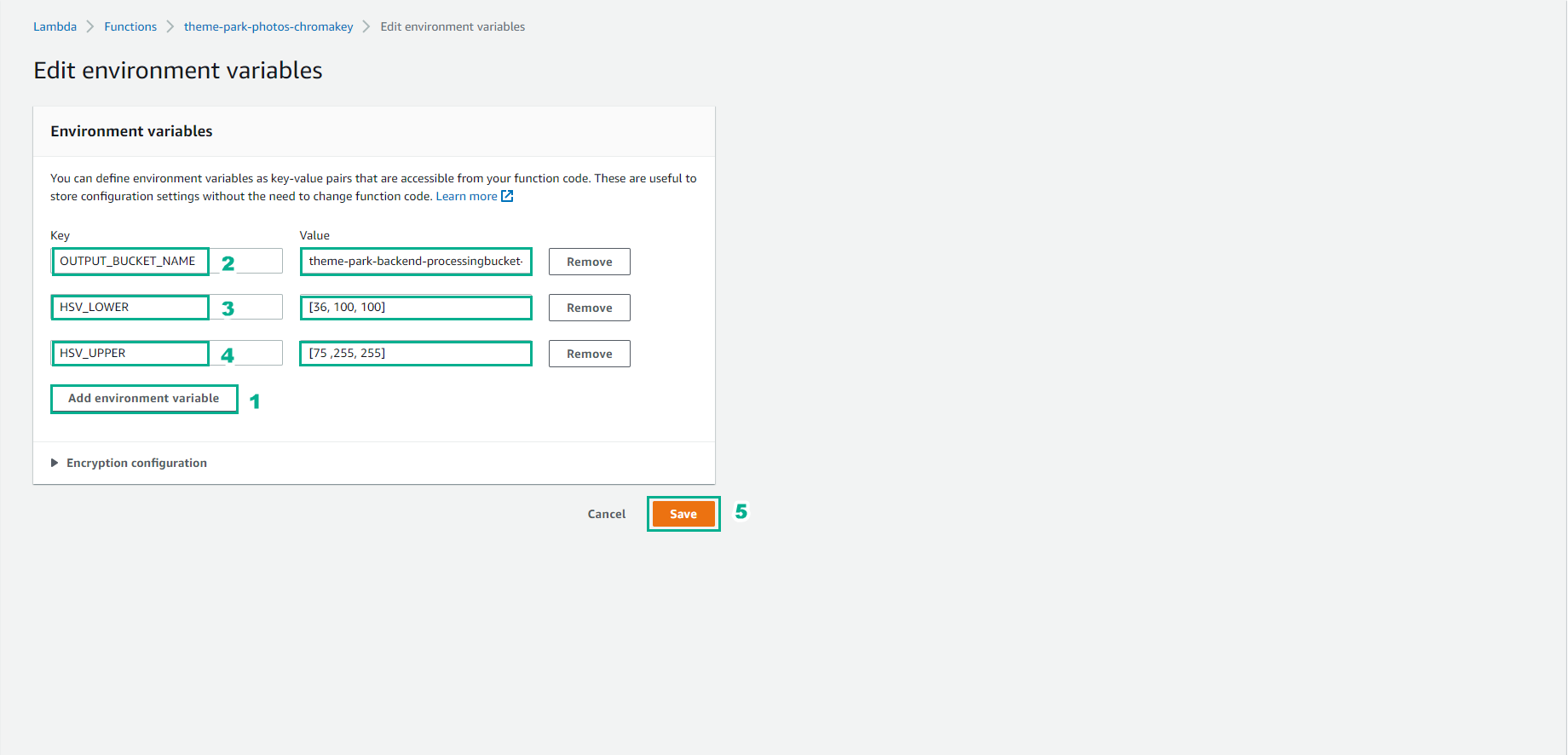
This function uses three environment variables:
- OUTPUT_BUCKET_NAME: the name of the bucket containing the output object.
- HSV_LOWER: A tuple representing the lower HSV value for green screen chroma key matching.
- HSV_UPPER: A tuple representing the higher HSV value for green screen chroma key matching.
In this section, you will access and configure these Environment Variables for the function.
-
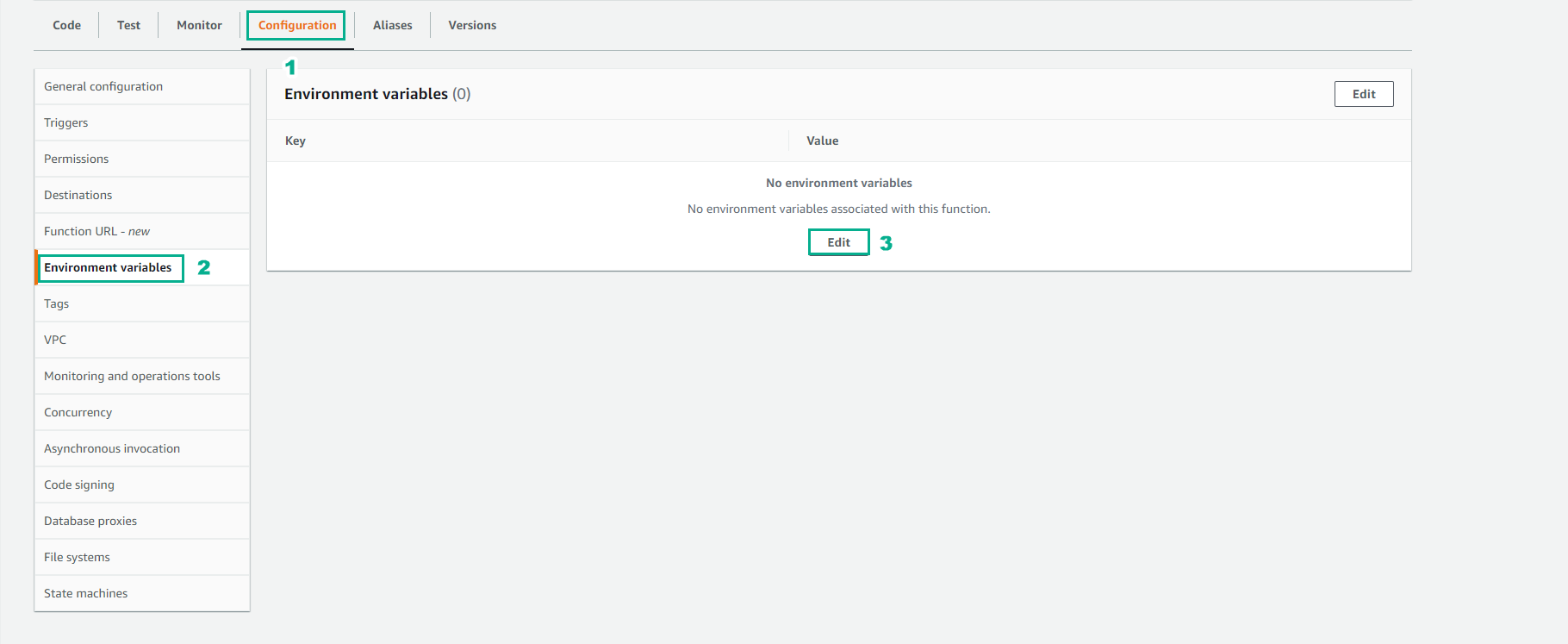
In Lambda functions . page
- Select Configuration tab
- Select Environment variables
- Select Edit
-
Return to Cloud9 Terminal interface
-
In the terminal, enter the following command to retrieve the value for OUTPUT_BUCKET_NAME
aws s3 ls | grep theme-park-backend-processingbucket

-
Enter three environment variables with three values, as follows:
- OUTPUT_BUCKET_NAME: value from step 3 above.
- HSV_LOWER: [36, 100, 100]
- HSV_UPPER: [75, 255, 255]
- Select Save
Change settings for Lambda Function
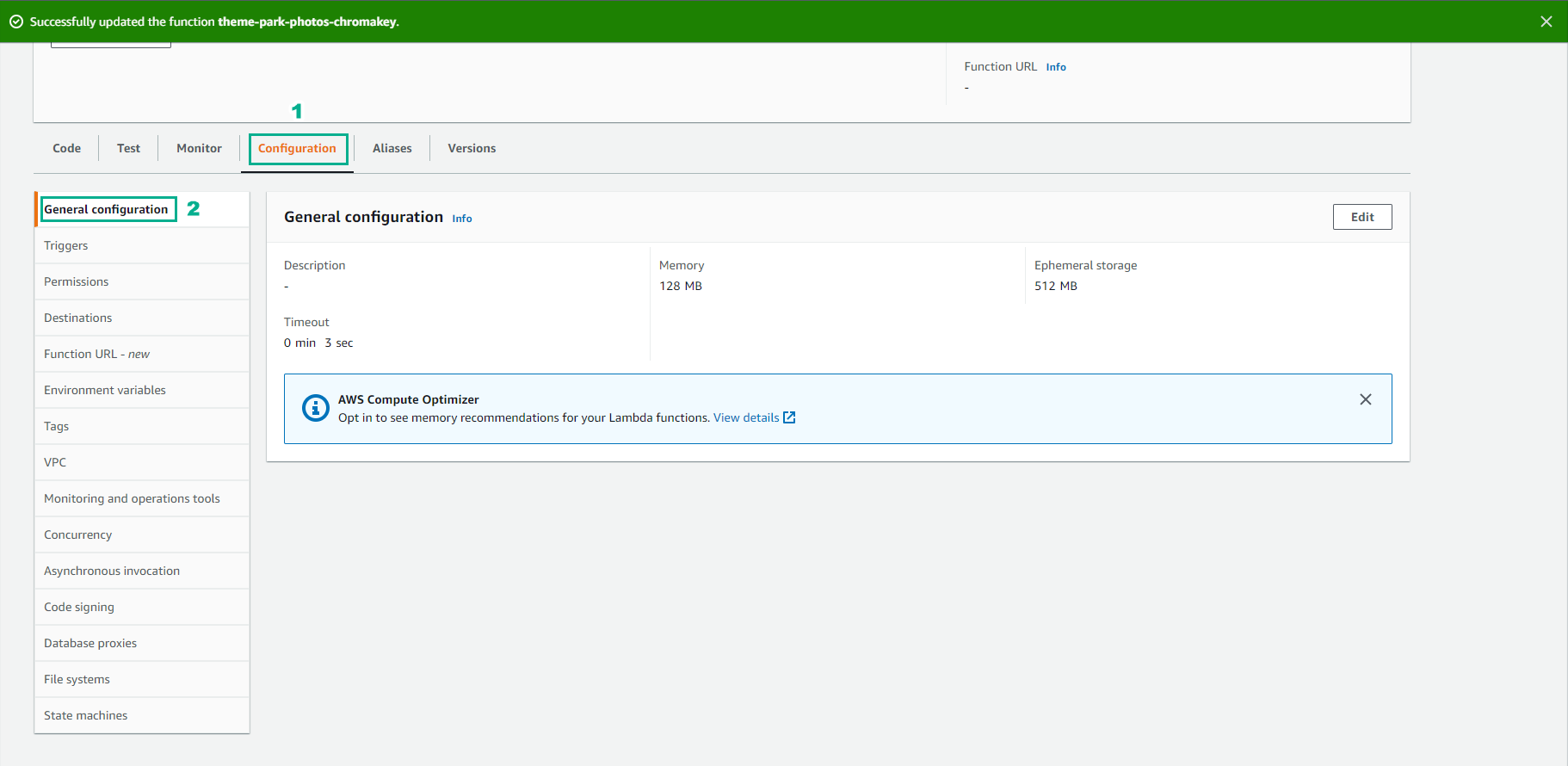
- In the browser tab theme-park-photos-chromakey Lambda function is open
- Select Configuration tab
- Select General configuration
- Select Edit
-
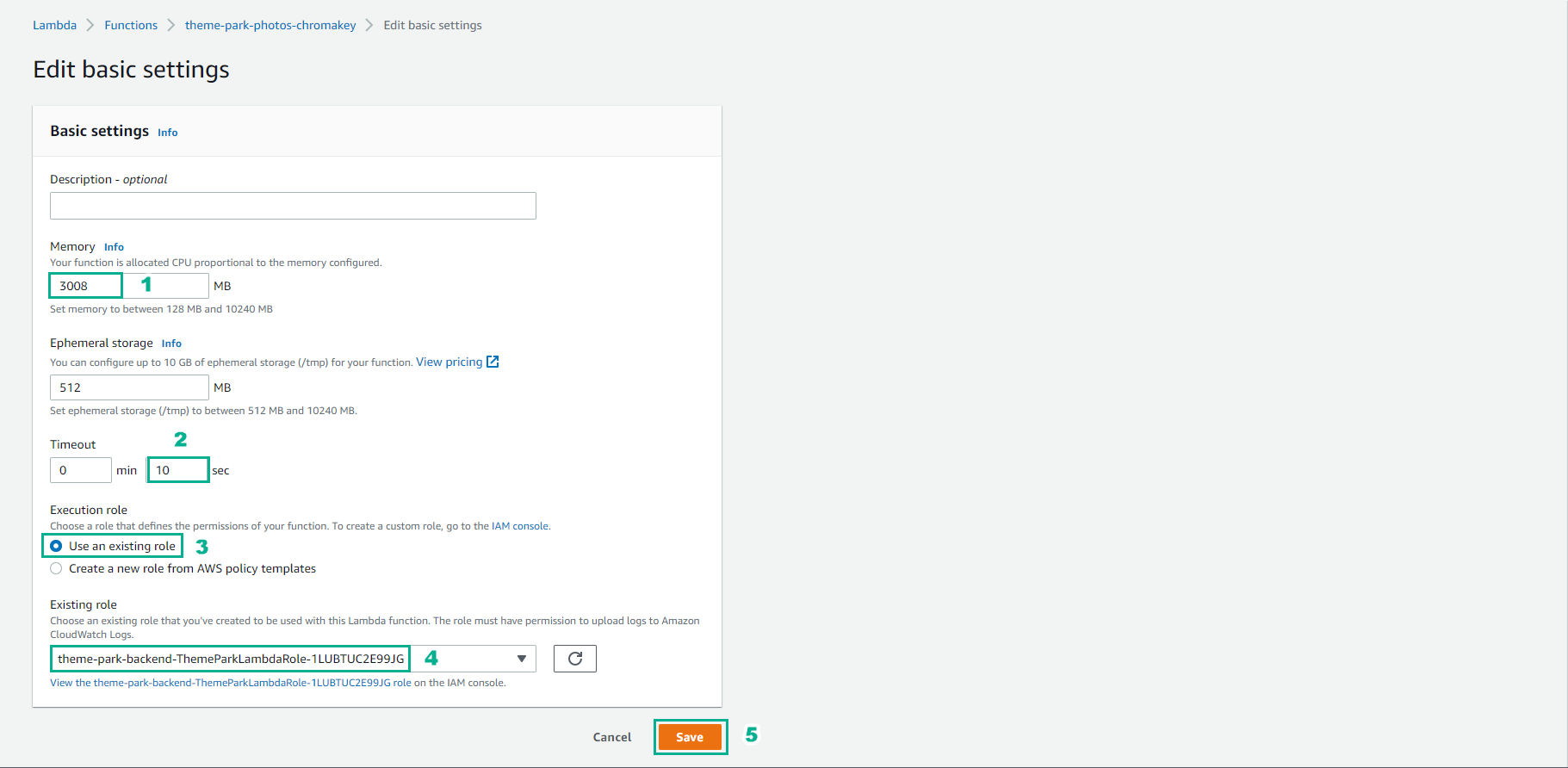
In the General configuration interface
- Change the value Memory(MB) to 3008 MB
- Change Timeout value from 0 to 10 sec
- Select Save.
- Finish changing settings Lambda function
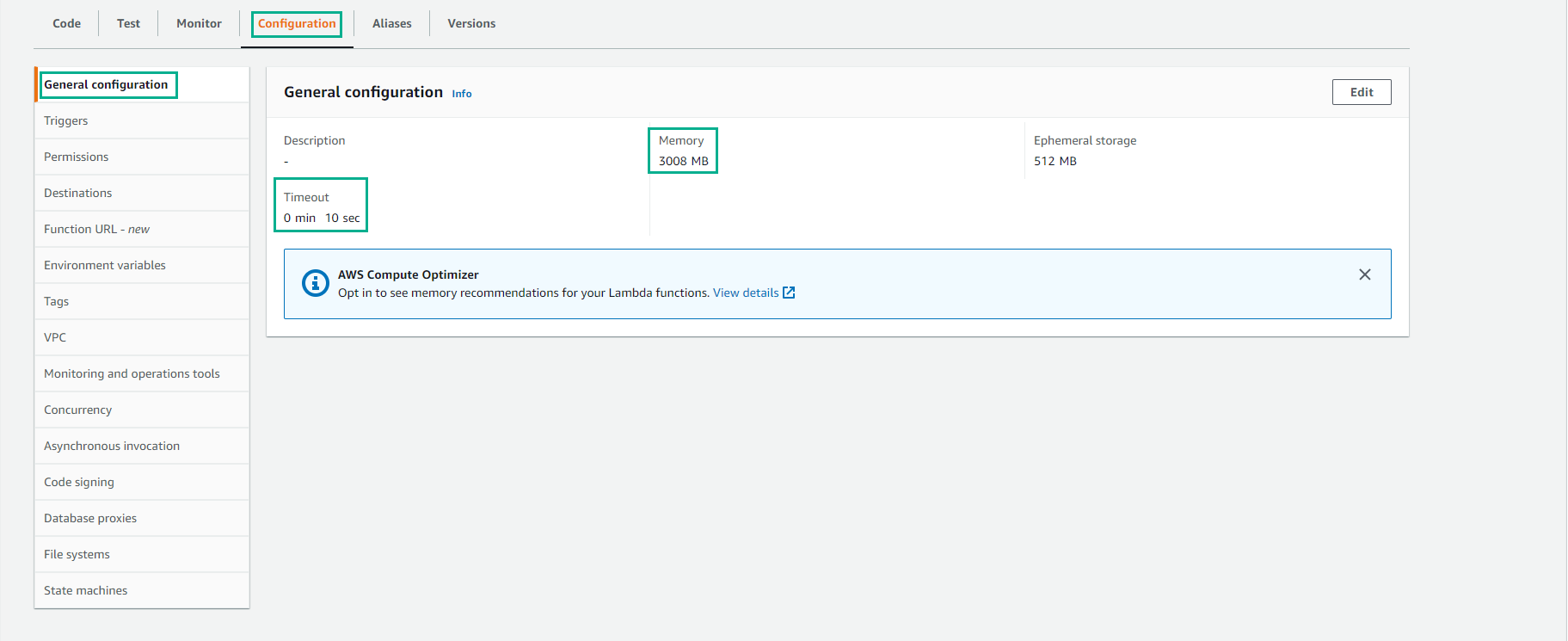
The chroma key process uses memory-intensive libraries to complete the graphics processing. By allocating maximum memory, this function will complete the processing faster.
Test function
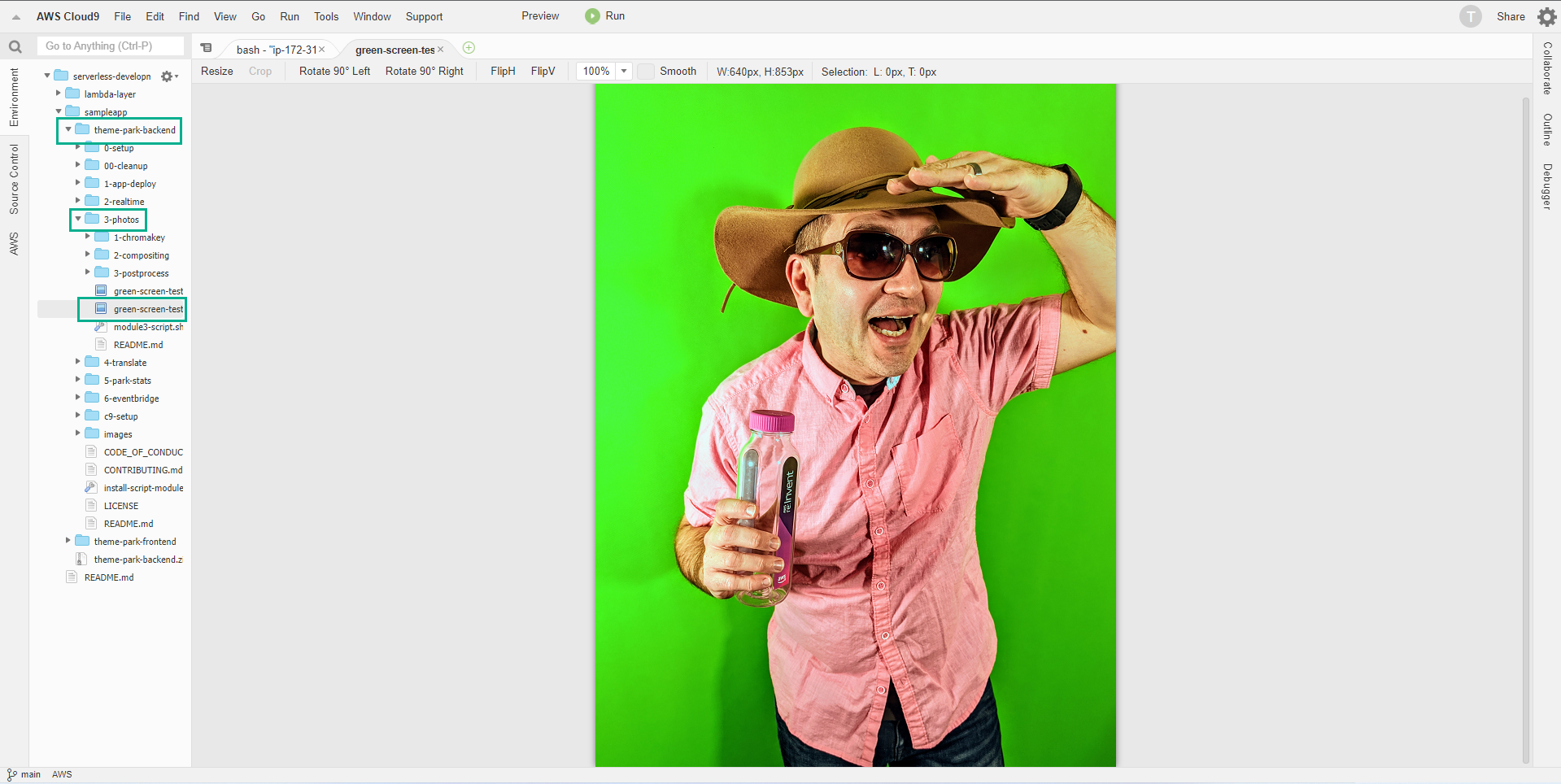
Now you will test the function using a test image containing a photo of a person on a green background. You would manually copy this image into Upload bucket and see the result in Processing bucket.
-
Go back to your browser tab while Cloud9 is running.
-
Navigate to the theme-park-backend\3-photos\green-screen-test.png file and open it. You can view a photo of a person with a green screen. Here is a local test image.
- In terminal , enter the following command to change directory:
cd ~/environment/sampleapp/theme-park-backend/3-photos/
- Find the name of your S3 upload bucket with the following command:
aws s3 ls | grep uploadbucket
- Copy the local test image into your upload bucket, replacing the youruploadbucket bucket parameter with your bucket name from step 4:
aws s3 cp ./green-screen-test.png s3://youruploadbucketname

-
In another browser tab, open the AWS Console S3 console.
- Select theme-park-backend-processingbucket.
- Select green-screen-test.png
- Select Download
- Save the file locally and open it in the image viewer.
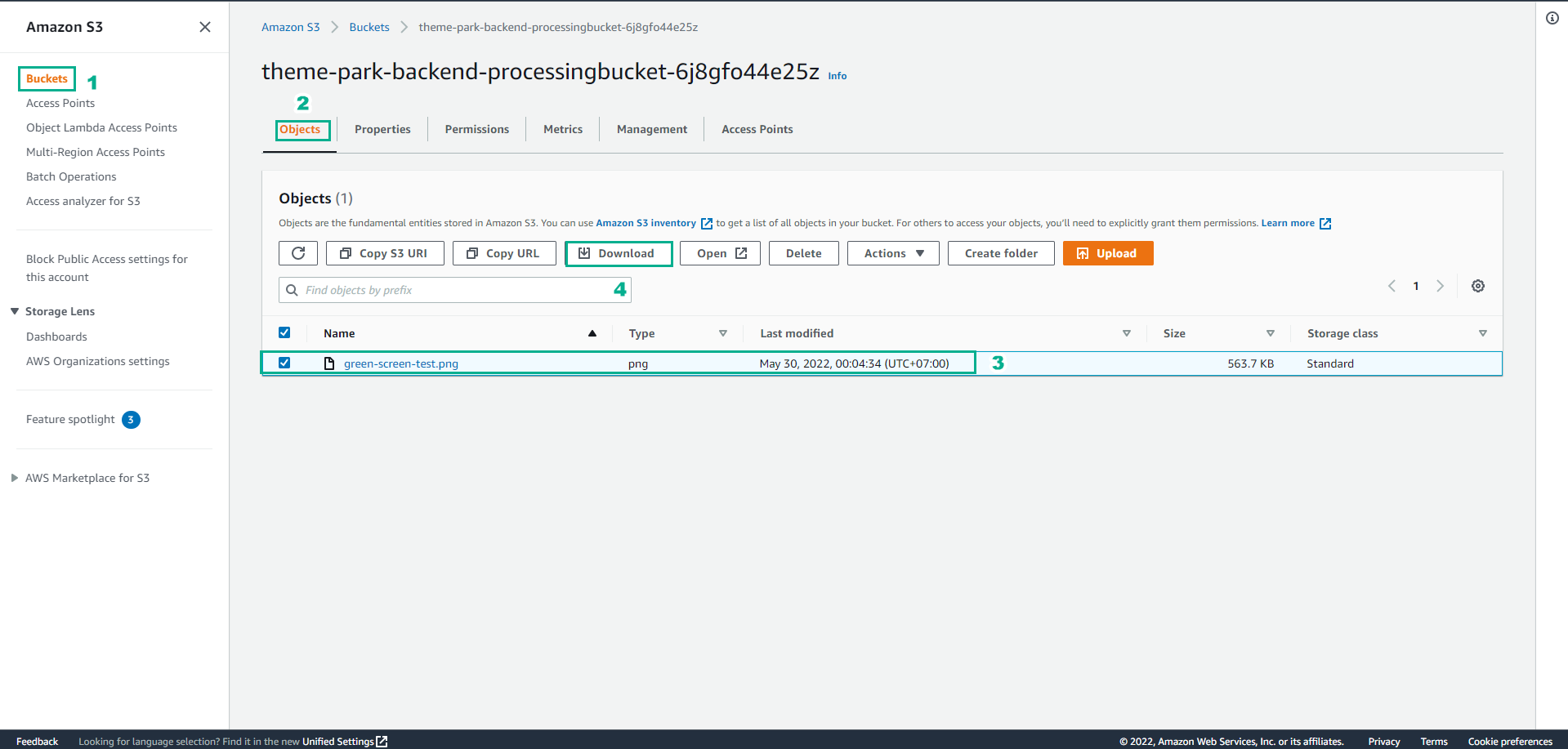
- You will see the original modified green screen image showing the person with the green background now removed. The Lambda function was called when the image was uploaded to the S3 bucket. The function ran a chromakey process using a library imported with Lambda Layer to get rid of the green screen and then wrote the resulting image to another S3 bucket.