Backend Deployment
Backend Deployment.
Park guests love to take pictures on rides and attractions. This app feature will allow guests to take selfies and view collages within the app. From here, they can publish their masterpiece on social media.
How it works
The front-end calls an API endpoint to get a pre-specified URL to upload images to S3. This allows front-end applications to upload directly to S3 without the need for a web server. This results in a new JPG object in the S3 Upload bucket. When a new object is written to the Upload bucket, this function calls the first Lambda function in the chain, which uses a process called Chromakey to remove the green screen background from the image. The resulting image is written to the processing bucket. When a new object is written to the Processing bucket, this will call the next Lambda function to combine the image with the new background and theme park logo. This resulting image is written to the Final bucket. Finally, when a new object is written to the Final bucket, this will call a Lambda function that will eventually send a notification to the IoT core that the file is ready. This notifies the front-end application via IoT topic notifications.
The Serverless Backend
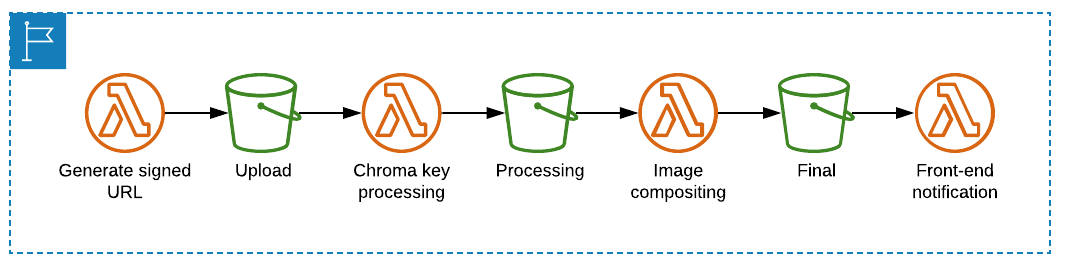
- The image is uploaded by the front-end to the Upload bucket.
- The chromakey process removes the background and saves the object in the Processing bucket.
- The composting process produces the final image that is saved to the Final bucket.
- A message is sent to IoT Core to notify the front-end that the file is now ready.
In this module, you will implement three Lambda functions. Once set up, you’ll update your front-end code to trigger the upload.
Once configured, you will:
- Test the backend using sample images to make sure the flow works as expected.
- Test the front-end by taking a selfie in front of the green screen and Tweet it to everyone!
Set environment variables
Run the following commands in the Cloud9 terminal to set the environment variables used:
AWS_REGION=$(curl -s http://169.254.169.254/latest/meta-data/placement/availability-zone | sed 's/\(.*\)[a-z]/\1/')
FINAL_BUCKET=$(aws cloudformation describe-stack-resource --stack-name theme-park-backend --logical-resource-id FinalBucket --query "StackResourceDetail.PhysicalResourceId" --output text)
UPLOAD_BUCKET=$(aws cloudformation describe-stack-resource --stack-name theme-park-backend --logical-resource-id UploadBucket --query "StackResourceDetail.PhysicalResourceId" --output text)
accountId=$(curl -s http://169.254.169.254/latest/dynamic/instance-identity/document | jq -r .accountId)
s3_deploy_bucket="theme-park-sam-deploys-${accountId}"

Environment variables are not stored in the terminal . Any time you close Cloud9 or open a new terminal, you will need to run these commands again to set the environment variables. This section is provided in each module.
Deploy infrastructure
This module has three parts: