Backend Deployment
Overview
-
Controller publishes updates every minute to Amazon SNS topic.
-
You will create a Lambda function in your account, which will be called whenever there is an announcement on this topic. This function will store the message in DynamoDB and forward the message to IoT Core. Finally, you will update the front-end application configuration to listen to this IoT endpoint and republish the front end.
-
More information about the services introduced in this section:
The Real-Time Serverless Backend
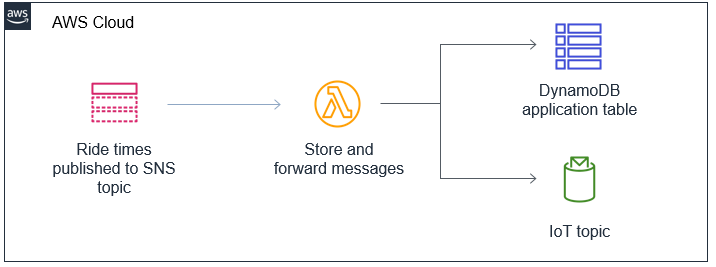
- Flow & Traffic Controllers have been deployed and updates are published to the SNS topic. The Lambda function receives the new message as an event payload and parses the message. It then stores the message in the DynamoDB table and forwards it to the IoT topic.
- The DynamoDB table stores only the last message. This initial state is needed when the front-end application is loaded for the first time.
- IoT topic is the path from the serverless backend program to the front-end application. Any messages posted here will be received by the front-end.
Set environment variables
- Run the following commands in the Cloud9 terminal to set the environment variables
AWS_REGION=$(curl -s http://169.254.169.254/latest/meta-data/placement/availability-zone | sed 's/\(.*\)[a-z]/\1/')
accountId=$(curl -s http://169.254.169.254/latest/dynamic/instance-identity/document | jq -r .accountId)
s3_deploy_bucket="theme-park-sam-deploys-${accountId}"
Environment variables are not stored in the terminal. Any time you close Cloud9 or open a new terminal, you will need to run these commands again to set the environment variables. This section is provided in each module.

Create Lambda function
-
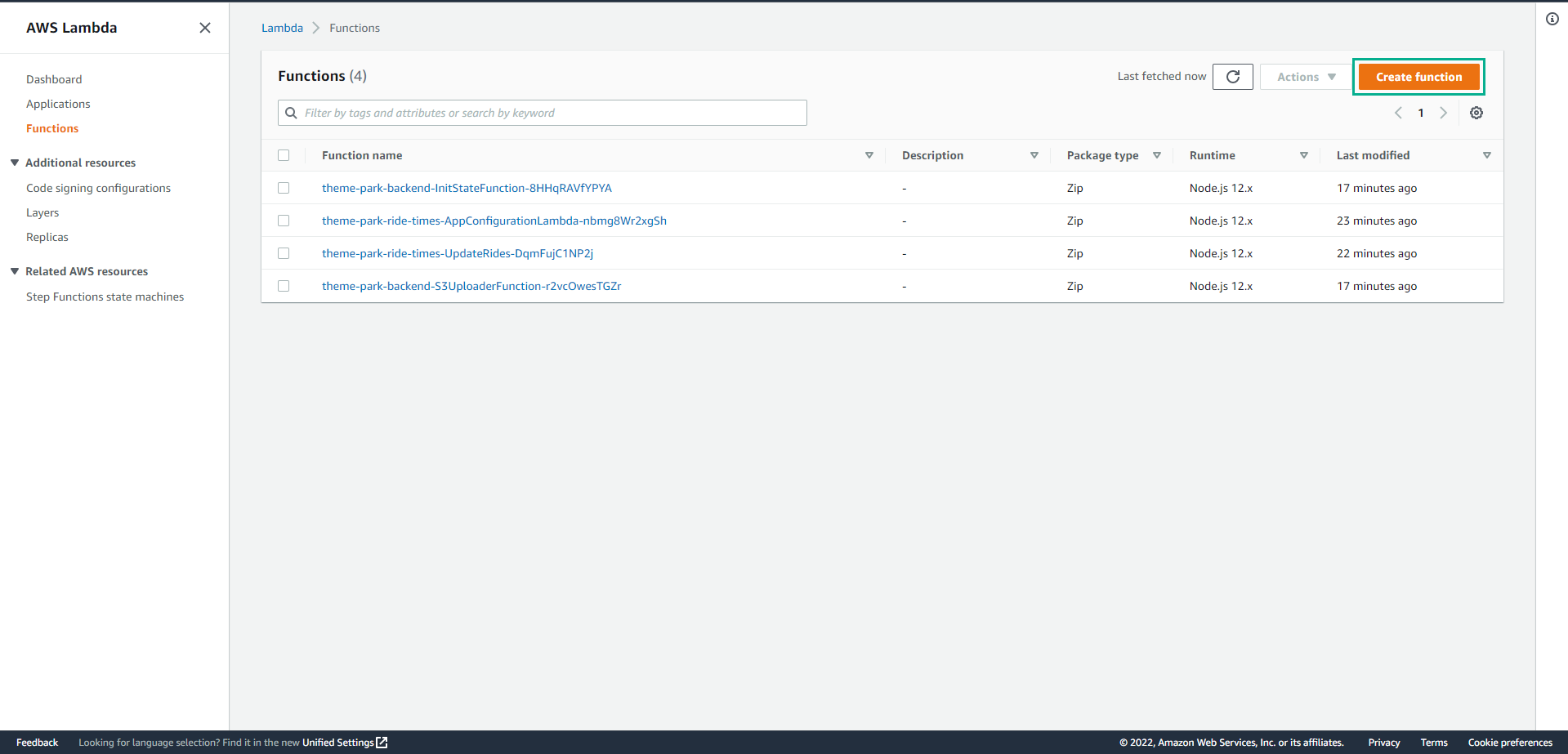
Go to the Lambda console - from the AWS Management Console, select Service, and then select Lambda. Make sure your Region is correct.
- You will see some Lambda functions that SAM has implemented.
- Select Create function
-
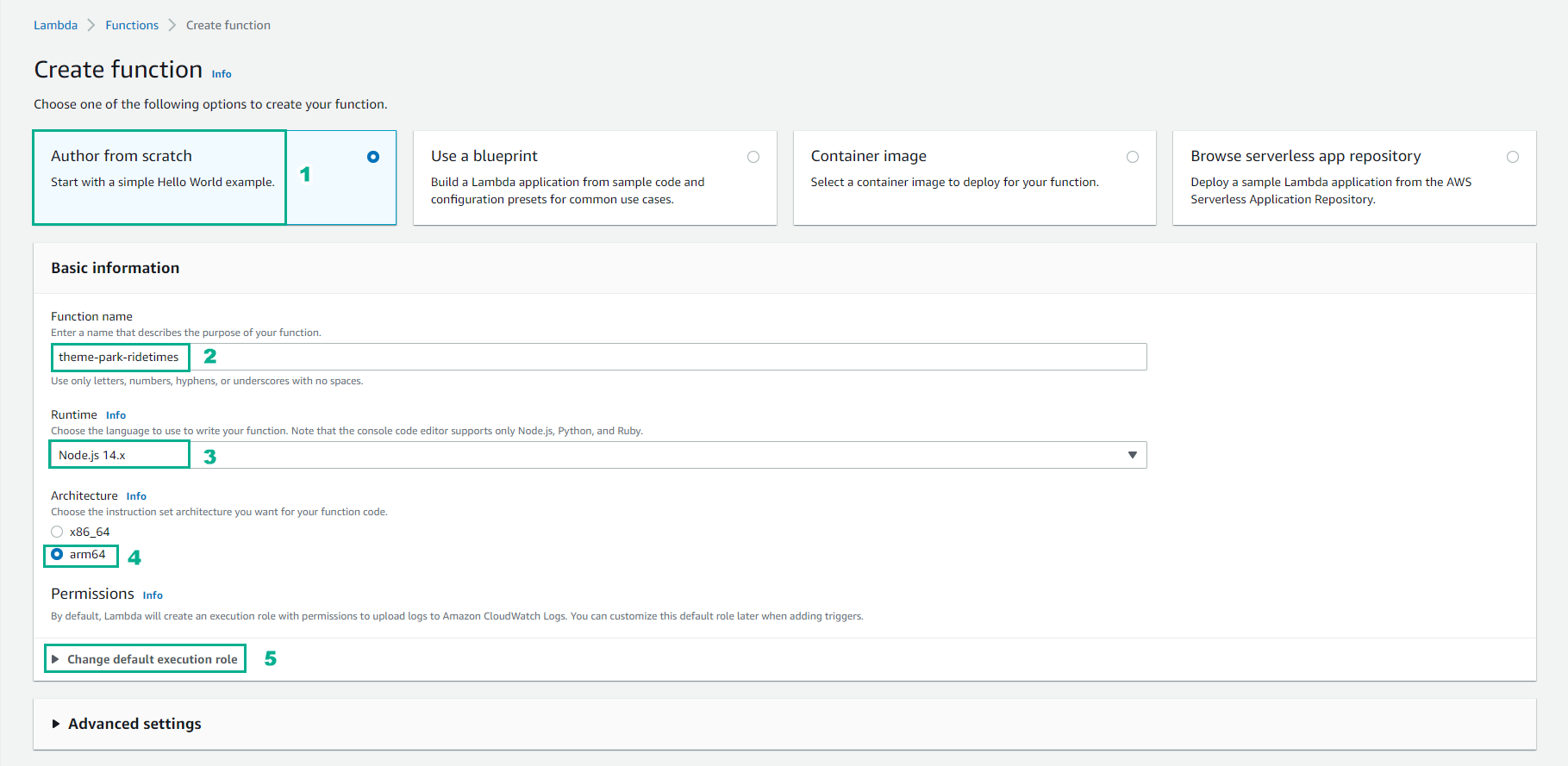
In the Create function page
- Select Author from scratch
- For Basic information, Function name, enter
theme-park-ridetimes - For Run time, select Nodejs 14.x
- Architecture, select arm64
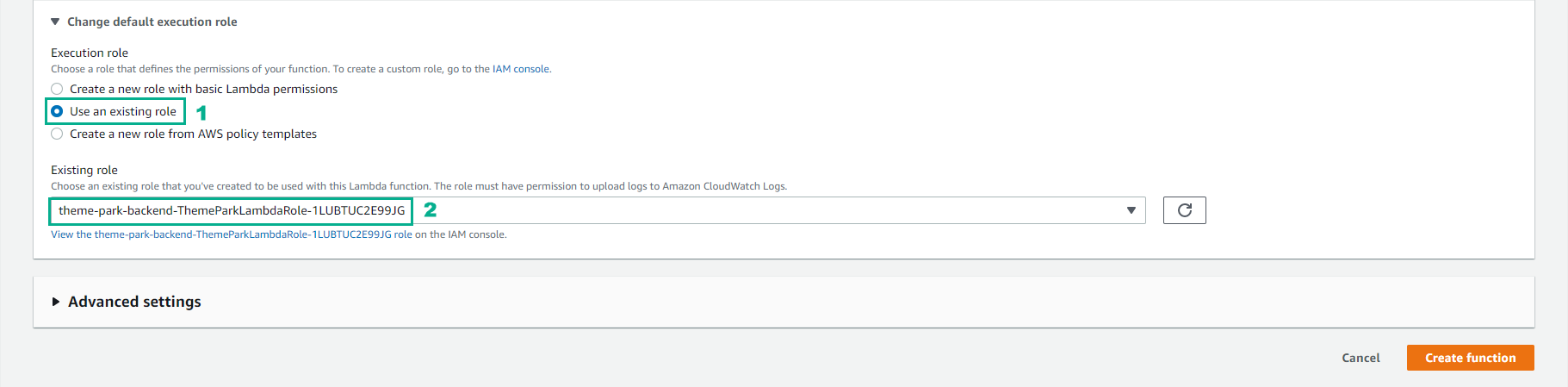
- Choose to expand Change default execution
-
For Change default execution
- Select Use an existing role
- For Existing role, select theme-park-backend-ThemeParkLambdaRole-XXX
- Select Create function
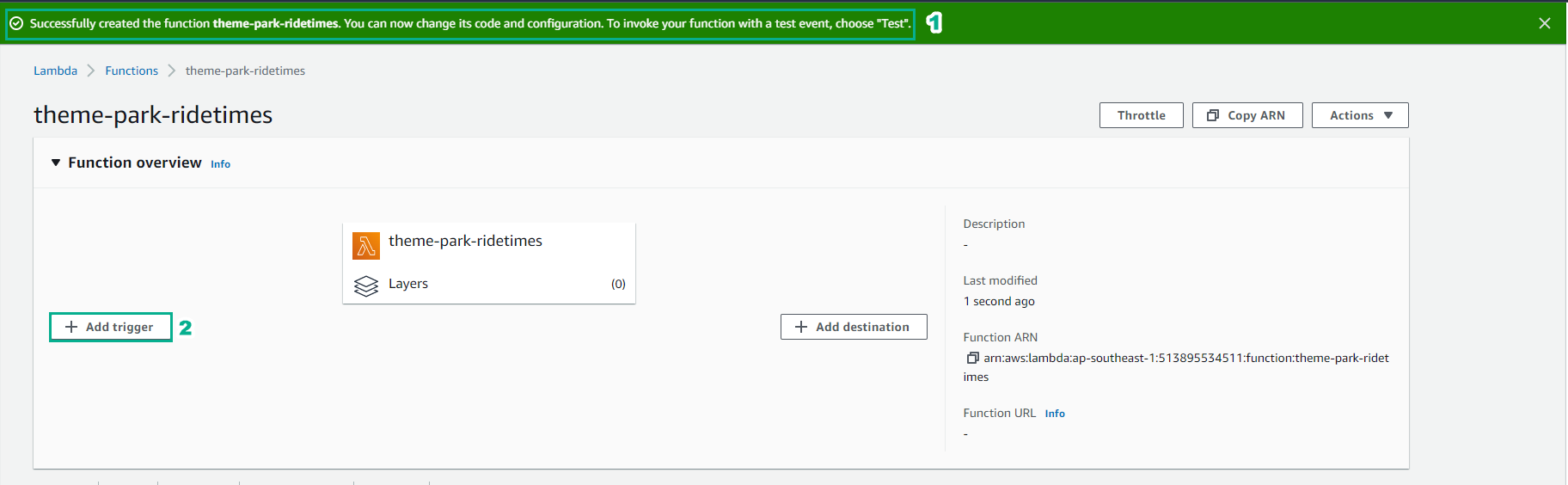
- Complete function creation. Next, we choose + Add trigger
-
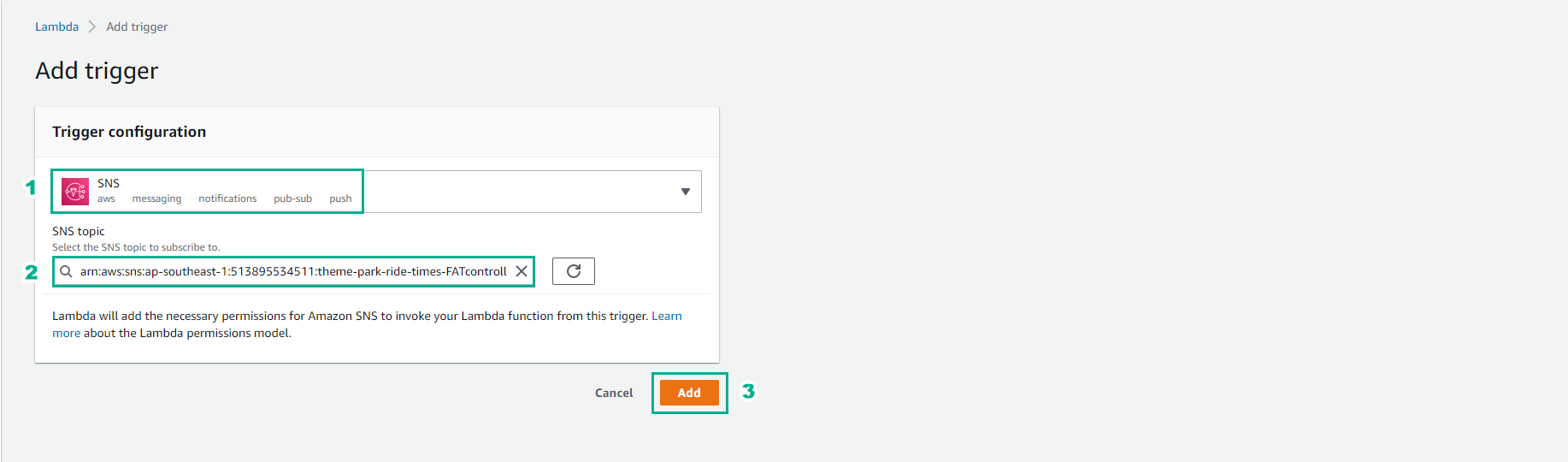
Execute Trigger configuration
- Select SNS
- SNS topic, select theme-park-ride-times-XXX
- Select Add
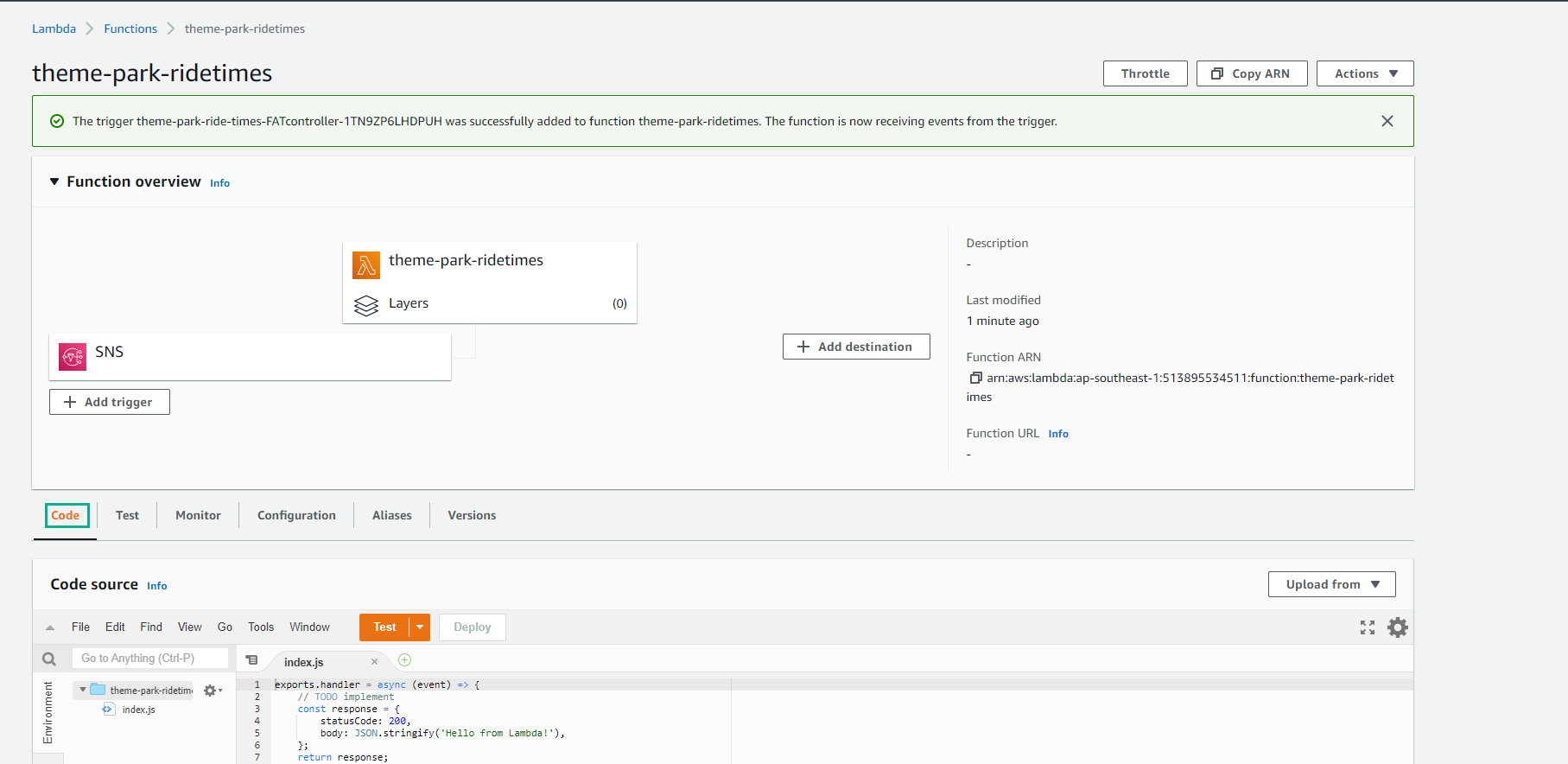
- After Trigger configuration is successful.
- Select Code
-
Return to Cloud9 tab.
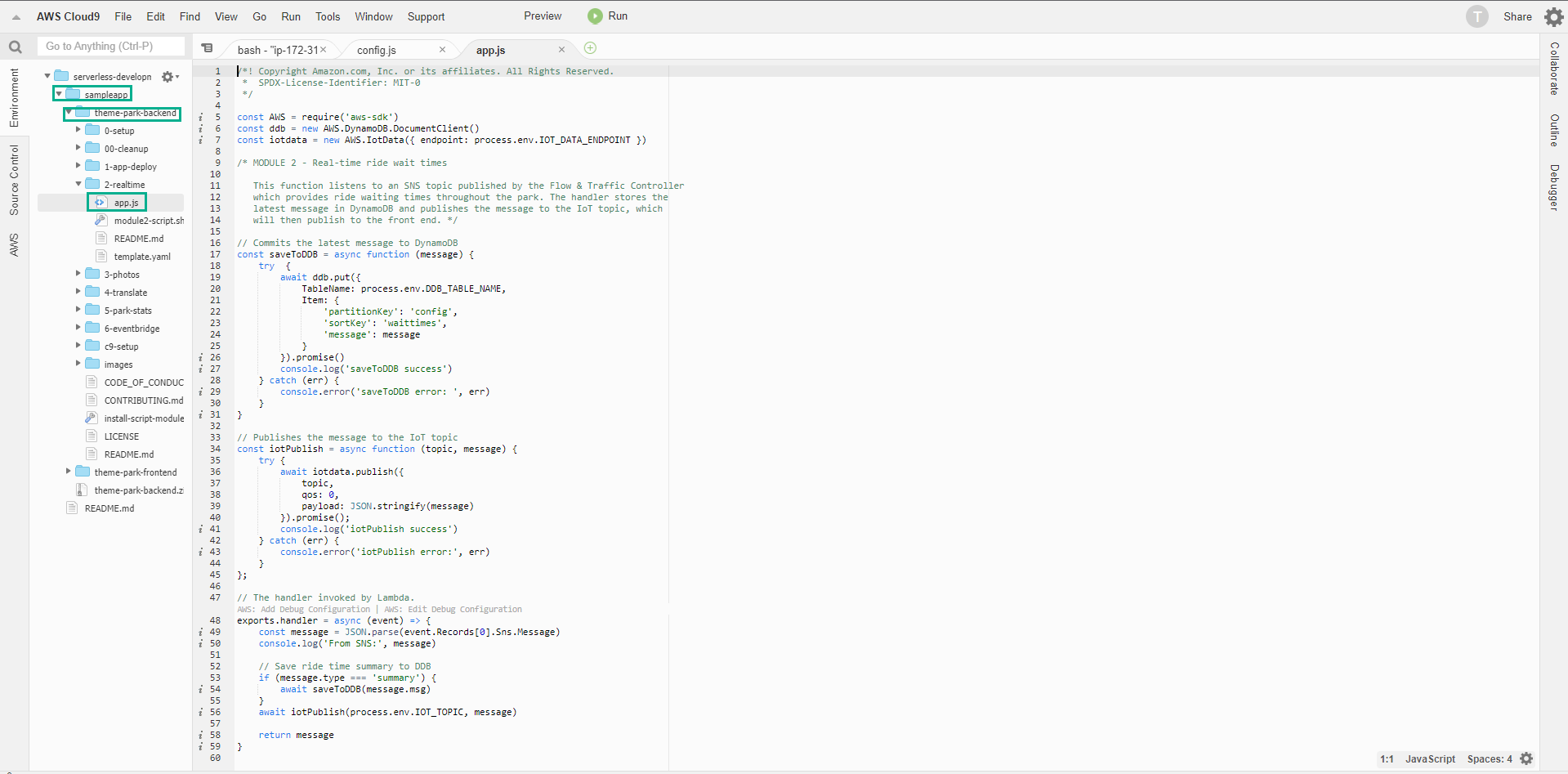
- Select theme-park-backend.
- Select 2-realtime.
- Select app.js.
- Copy the code of app.js.
- Return to Lambda console.
- Select index.js.
- Paste the code of app.js in.
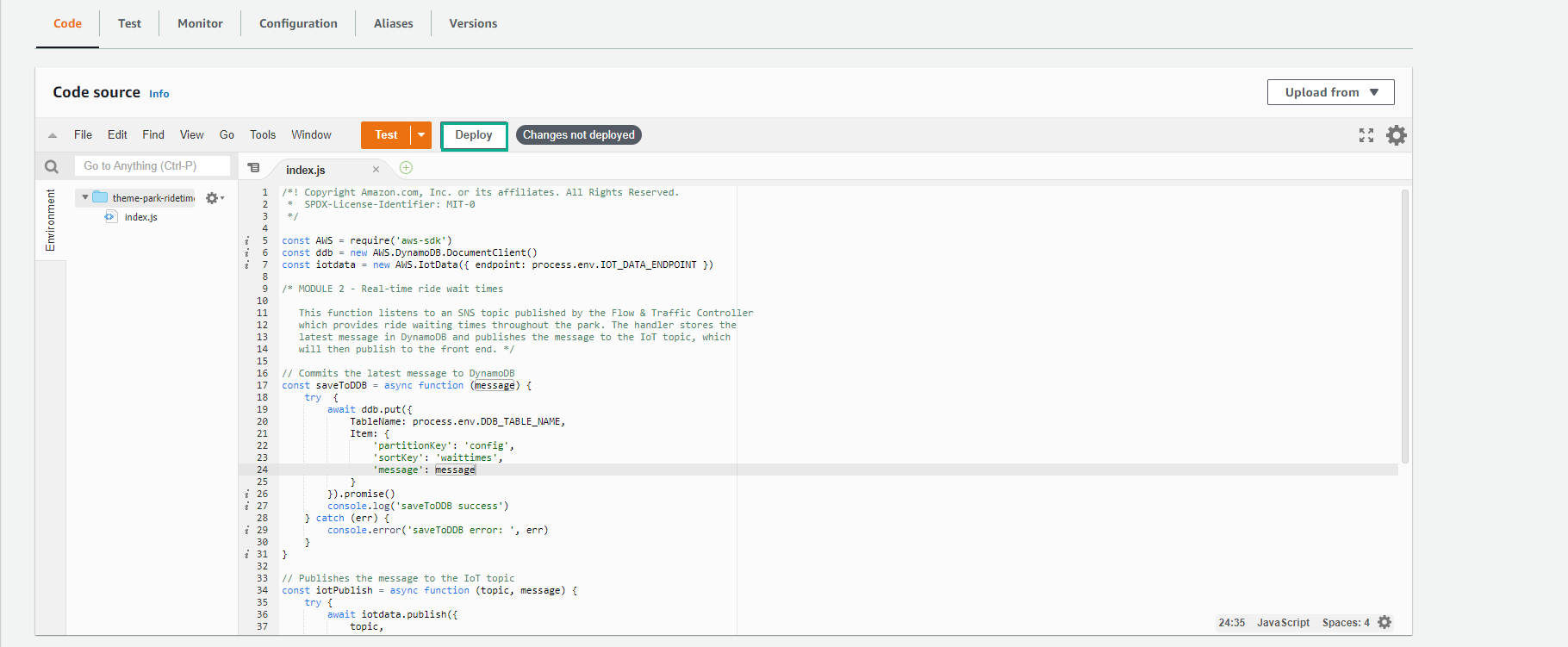
This Lambda function code reads the latest message from the SNS topic, writes it to the DynamoDB table, and then pushes the message to the front-end application via the IoT topic.
Add environment variables
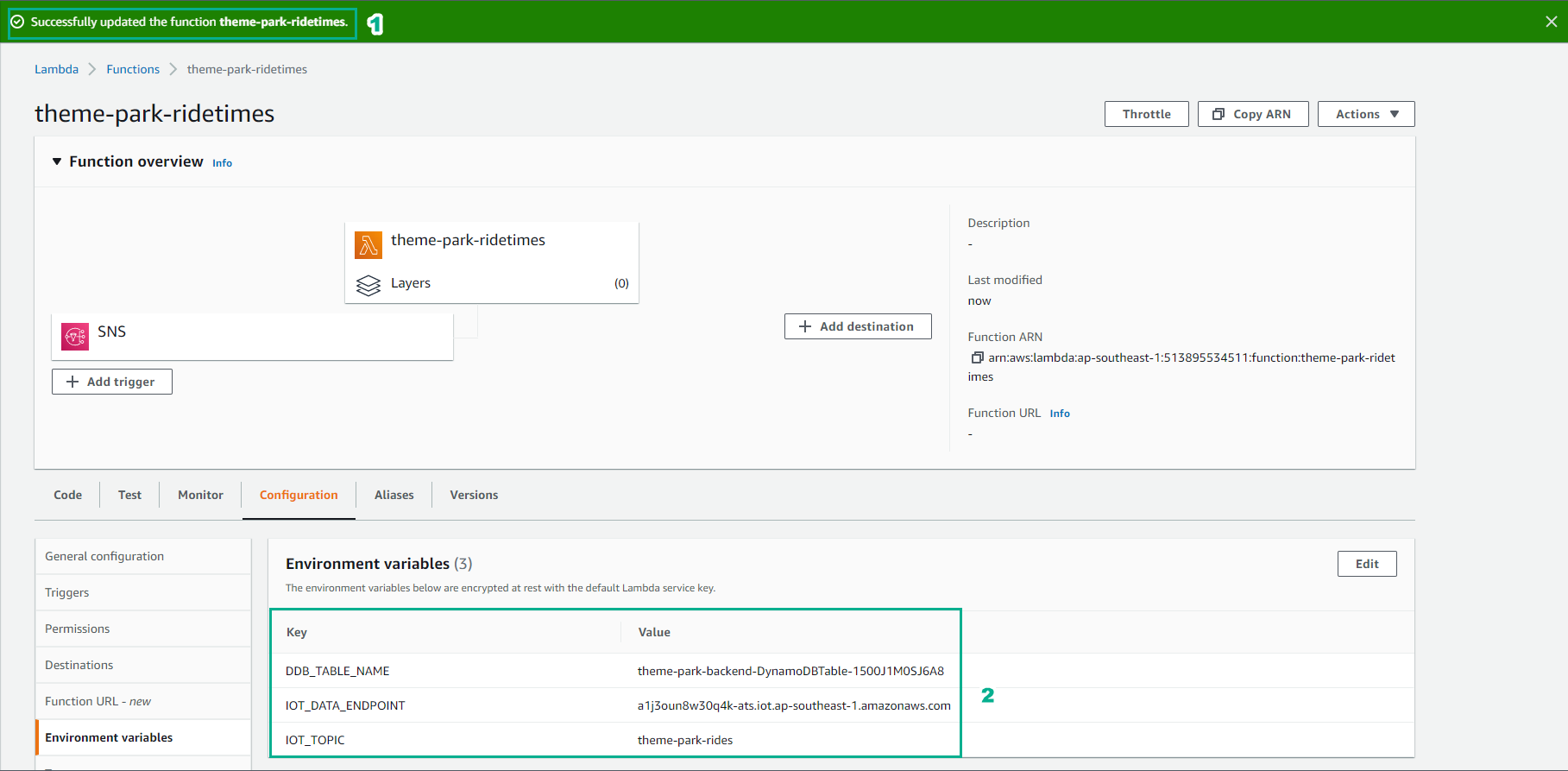
This function uses three environment variables:
- IOT_DATA_ENDPOINT: ioT endpoint hostname.
- IOT_TOPIC: The name of the ioT topic to publish the theme-park-rides message.
- DDB_TABLE_NAME: The DynamoDB table name of the application.
-
Go back to your browser tab while Cloud9 is running.
-
In the terminal, enter the following command to retrieve the value for IOT_DATA_ENDPOINT:
aws iot describe-endpoint --endpoint-type iot:Data-ATS
- Next, enter the following command to retrieve the value for DDB_TABLE_NAME:
aws dynamodb list-tables | grep backend

-
Go back to the browser tab with theme-park-ridetimes Lambda function open.
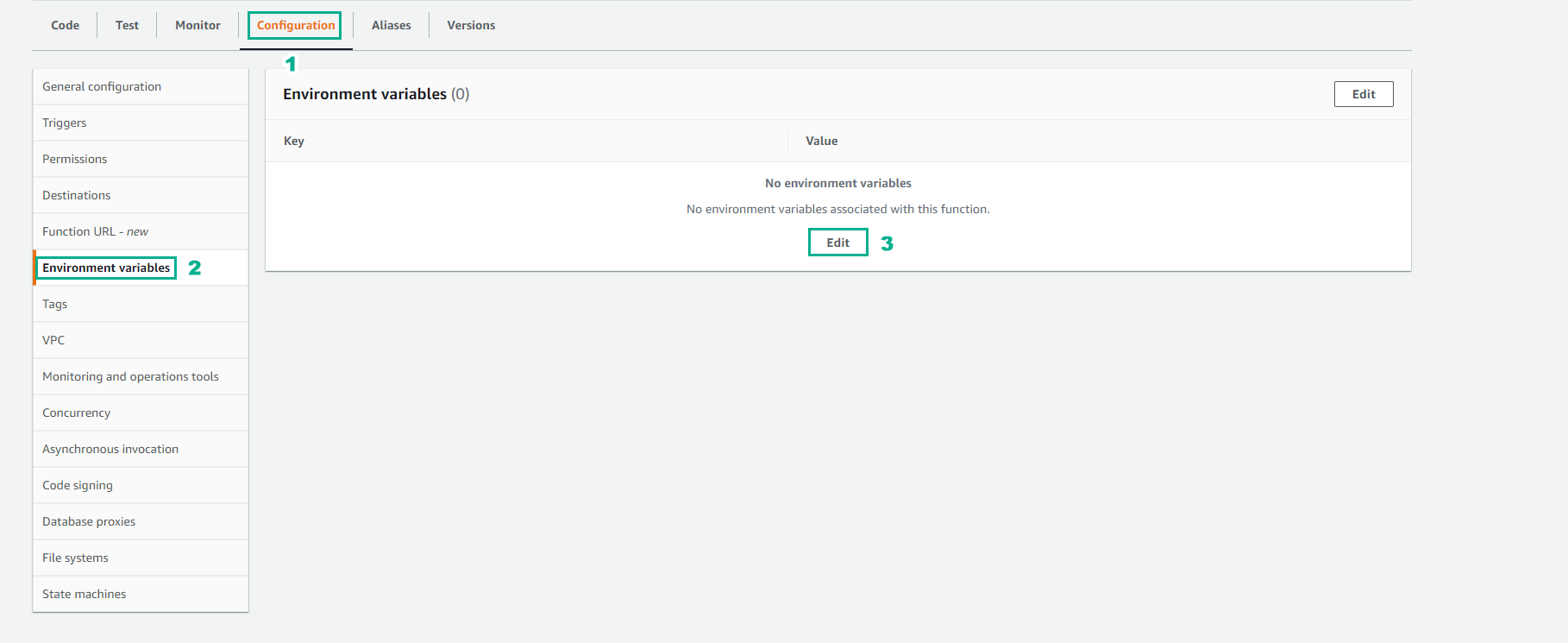
- Select tab Configuration ,
- Then select the Environment variables menu option on the left.
- Select Edit
-
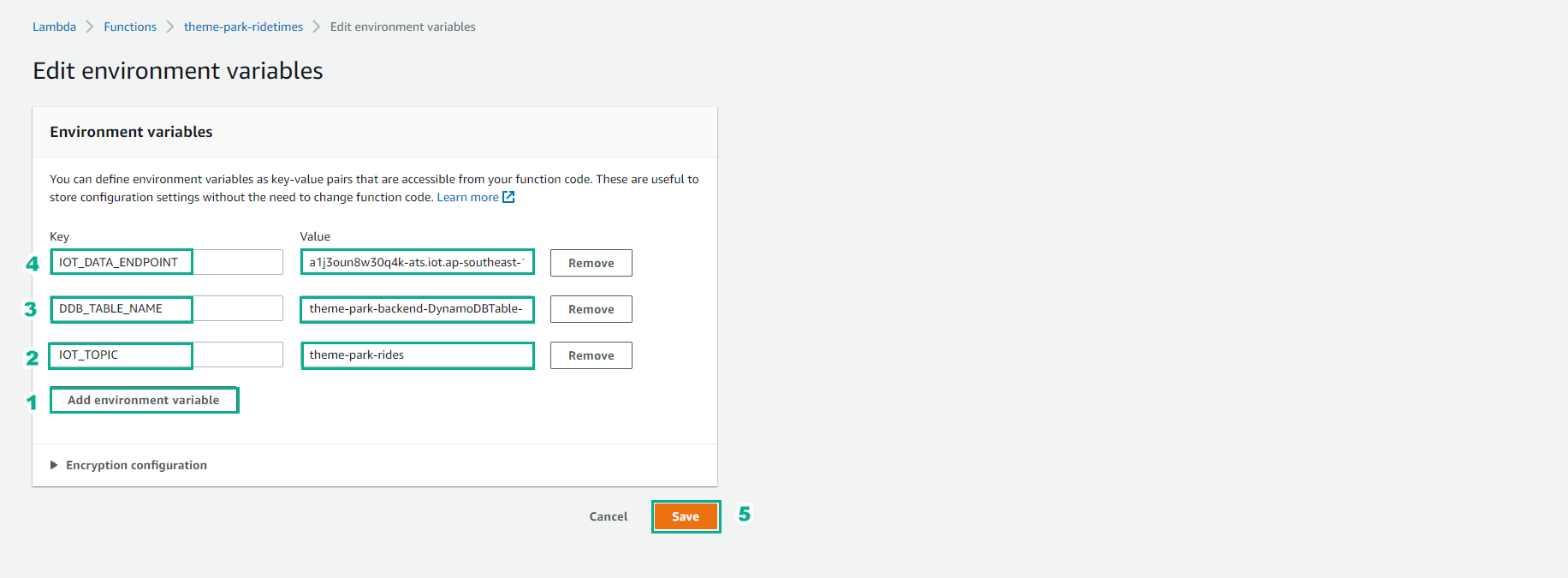
Select Add environment variable three times to enter the following three environment variables:
- IOT_DATA_ENDPOINT - value from step 2 above (without quotes).
- DDB_TABLE_NAME - value from step 3 above (without quotes).
- IOT_TOPIC -theme-park-rides
- Select Save
- Finish adding environment variables.